> ## Documentation Index
> Fetch the complete documentation index at: https://docs.paxos.com/llms.txt
> Use this file to discover all available pages before exploring further.
# Agreements
> Review and accept your organization's agreements with Paxos directly in the Dashboard.
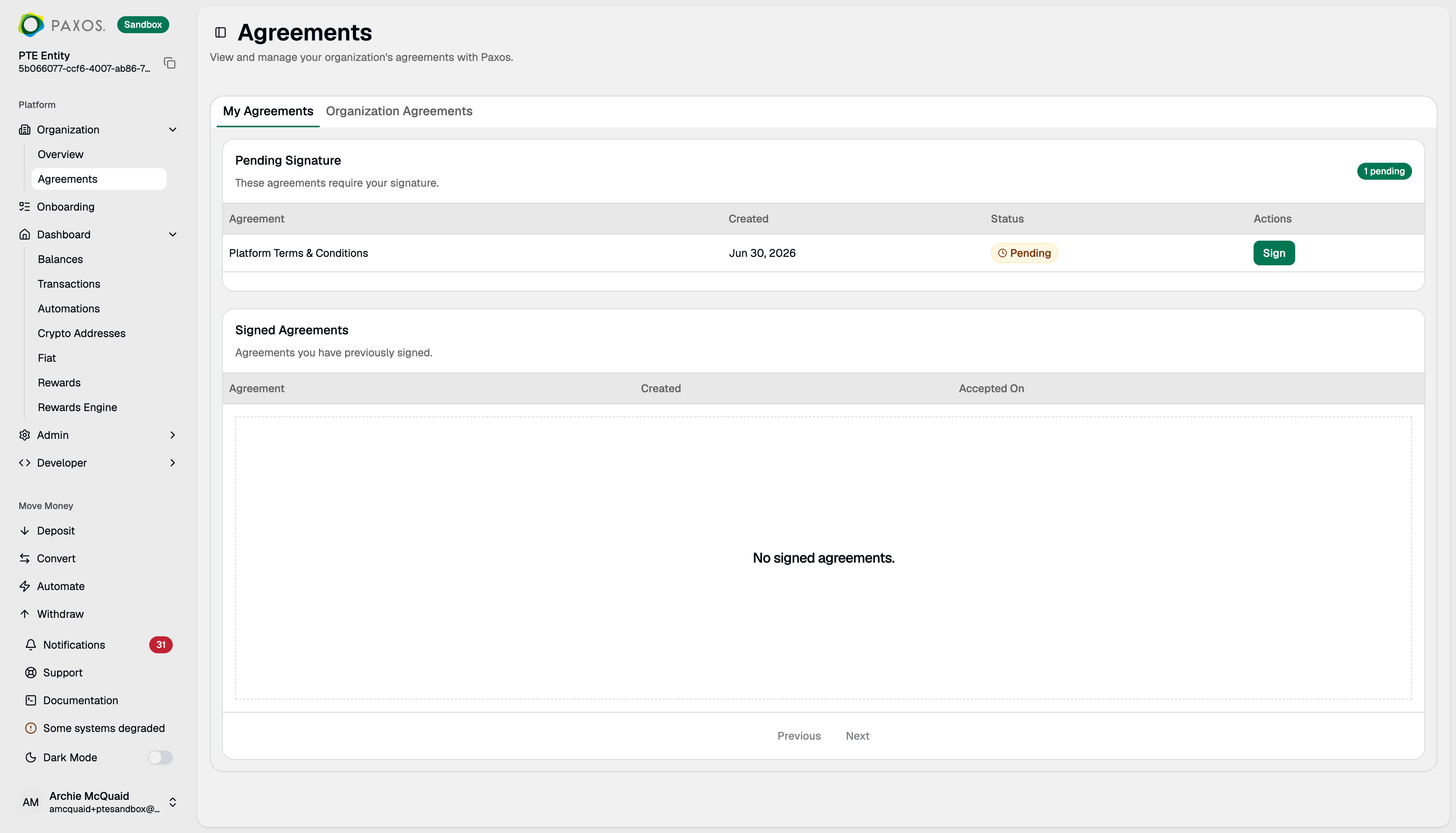
Go to [Agreements](https://dashboard.paxos.com/organization/agreements) to review, sign, and track the agreements that apply to your organization, including terms and conditions, pricing, and other documents.
When Paxos publishes a new or updated agreement that applies to you, it appears here for an authorized user to accept. Signing may be required to unlock a product capability, or to keep one when an updated set of terms is published.
**Required Permissions**
* Anyone in your organization can view and sign agreements assigned to them under **My Agreements**.
* **Agreements Read** (`agreements:read`) -- view the **Organization Agreements** tab.
* **Approve Legal Agreements** (`agreements:write_legal_agreements`) -- accept certain legal agreements. If you do not have this permission, those agreements are not shown to you.
 ## How You're Notified
When an agreement is waiting on you, the Dashboard surfaces it in one of three ways depending on its deadline.
| State | What you see |
| ---------------------- | ---------------------------------------------------------------------------------- |
| No deadline | A dismissible warning banner at the top of the Dashboard with **Review & Accept**. |
| Deadline in the future | The same dismissible banner, with an `Acceptance required by [date]` note. |
| Deadline reached | You must accept the agreement or log out to continue. |
You are only blocked by an agreement you are able to accept yourself. The banner shows which audience the agreement applies to, for example `On behalf of [Organization name]`.
## My Agreements
The **My Agreements** tab lists agreements assigned to you, split into two sections.
### Pending Signature
Agreements that require your signature. Click **Sign** to review and accept one.
### Signed Agreements
Agreements you have already signed, with the date you accepted each one.
## Organization Agreements
While **Signed Agreements** lists only the agreements you signed yourself, the **Organization Agreements** tab shows every agreement your organization has accepted, including who accepted it and when. This tab is only visible to users with the **Agreements Read** permission.
Some agreements only need one person in your organization to accept on its behalf. Once a colleague signs, it stops showing as pending for everyone else and moves to your organization's accepted history.
## Review and Accept an Agreement
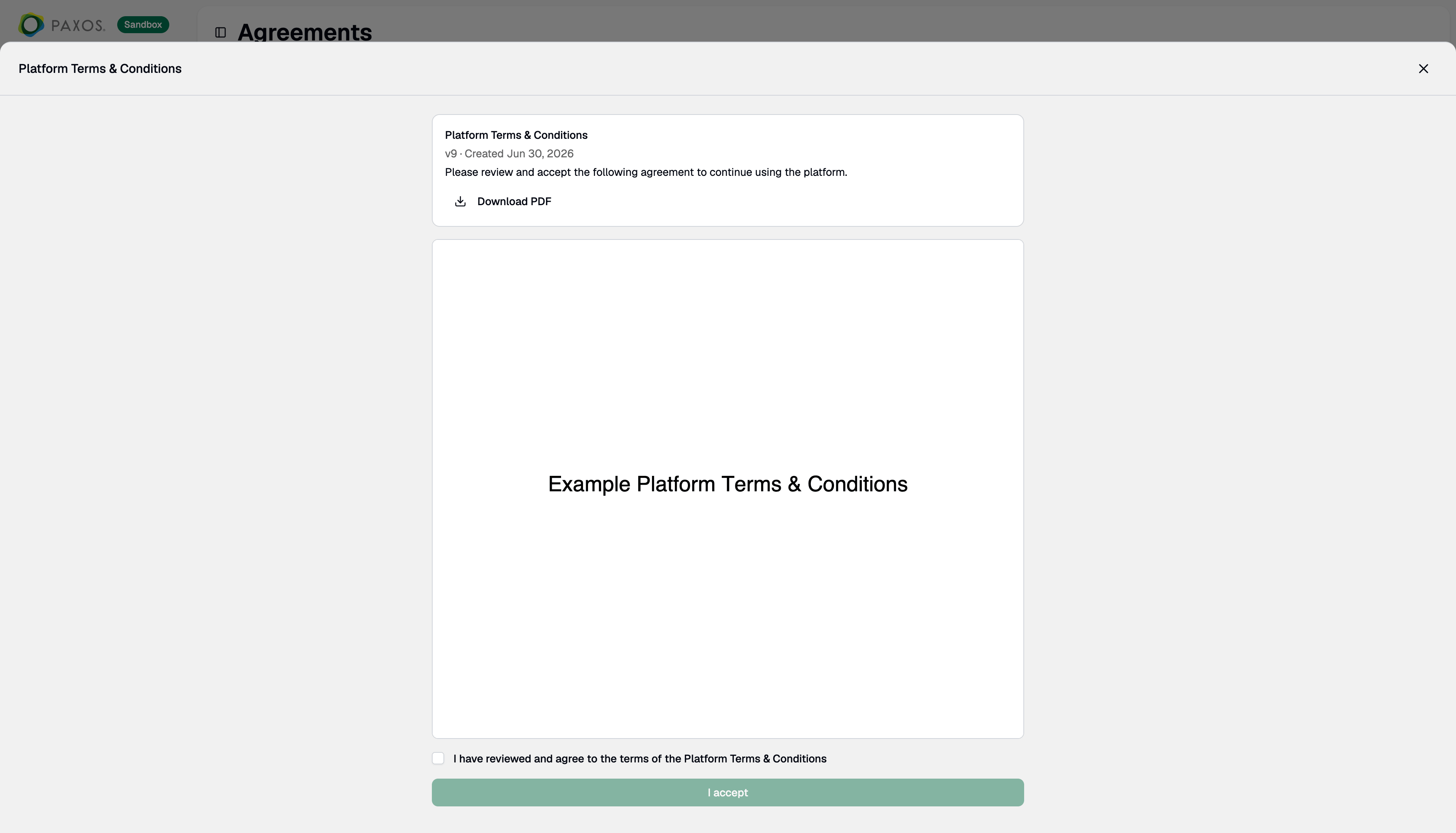
1. From **Pending Signature**, click **Sign** (or **Review & Accept** on a banner, or **Review Agreement** on a prompt).
2. The agreement opens inline. You must **read the document in full** before you can accept -- scroll to the bottom to enable acceptance.
3. Tick **I have reviewed and agree to the terms**.
4. Click **I accept**.
## How You're Notified
When an agreement is waiting on you, the Dashboard surfaces it in one of three ways depending on its deadline.
| State | What you see |
| ---------------------- | ---------------------------------------------------------------------------------- |
| No deadline | A dismissible warning banner at the top of the Dashboard with **Review & Accept**. |
| Deadline in the future | The same dismissible banner, with an `Acceptance required by [date]` note. |
| Deadline reached | You must accept the agreement or log out to continue. |
You are only blocked by an agreement you are able to accept yourself. The banner shows which audience the agreement applies to, for example `On behalf of [Organization name]`.
## My Agreements
The **My Agreements** tab lists agreements assigned to you, split into two sections.
### Pending Signature
Agreements that require your signature. Click **Sign** to review and accept one.
### Signed Agreements
Agreements you have already signed, with the date you accepted each one.
## Organization Agreements
While **Signed Agreements** lists only the agreements you signed yourself, the **Organization Agreements** tab shows every agreement your organization has accepted, including who accepted it and when. This tab is only visible to users with the **Agreements Read** permission.
Some agreements only need one person in your organization to accept on its behalf. Once a colleague signs, it stops showing as pending for everyone else and moves to your organization's accepted history.
## Review and Accept an Agreement
1. From **Pending Signature**, click **Sign** (or **Review & Accept** on a banner, or **Review Agreement** on a prompt).
2. The agreement opens inline. You must **read the document in full** before you can accept -- scroll to the bottom to enable acceptance.
3. Tick **I have reviewed and agree to the terms**.
4. Click **I accept**.
 The agreement moves to **Signed Agreements** and any related banner clears.
Click **Download PDF** to open the agreement in a new tab and save a copy.
## Updated Agreements
When Paxos publishes a new version of an agreement, the updated agreement reappears under **Pending Signature**. Your previous acceptance no longer satisfies it and a new signature is required. Review and accept the new version the same way.
## Withdrawn Agreements
If Paxos voids an agreement before you sign it, it is removed from **Pending Signature** and any prompt to sign it disappears -- no action is needed. Agreements you already accepted remain in your history for audit purposes.
> Questions? Contact [Support](https://support.paxos.com).
The agreement moves to **Signed Agreements** and any related banner clears.
Click **Download PDF** to open the agreement in a new tab and save a copy.
## Updated Agreements
When Paxos publishes a new version of an agreement, the updated agreement reappears under **Pending Signature**. Your previous acceptance no longer satisfies it and a new signature is required. Review and accept the new version the same way.
## Withdrawn Agreements
If Paxos voids an agreement before you sign it, it is removed from **Pending Signature** and any prompt to sign it disappears -- no action is needed. Agreements you already accepted remain in your history for audit purposes.
> Questions? Contact [Support](https://support.paxos.com).