> ## Documentation Index
> Fetch the complete documentation index at: https://docs.paxos.com/llms.txt
> Use this file to discover all available pages before exploring further.
# Authorization Keys for Crypto Withdrawals
> Require an Authorization Key for crypto withdrawals, and for conversions and automations that withdraw crypto to an external address, in the Dashboard.
When Authorization Keys are required for your organization, anyone who creates a crypto withdrawal in the Dashboard, or a conversion or automation that withdraws crypto to an external address, must authorize the request with their [Authorization Key](/guides/dashboard/admin/authorization-keys) before it is submitted. If your organization uses [approvals](/guides/dashboard/admin/approvals) for these actions, approvers must also use their key when they approve.
This confirms that a specific, verified person reviewed and authorized each request. Someone who gets into a Dashboard session without that person's key cannot withdraw crypto to an external address.
This applies only to actions started in the Dashboard. To protect requests sent through the API, use [Request Signing](/guides/developer/request-signing).
## What needs an Authorization Key
| Action | Who uses their key |
| - | - |
| Crypto withdrawals | The person who creates the withdrawal |
| [Conversions](/guides/dashboard/convert) that end in a crypto withdrawal to an external address | The person who creates the conversion |
| [Automations](/guides/dashboard/automate) that end in a crypto withdrawal to an external address | The person who creates the automation |
If an approval rule is turned on for any of these actions, each approver also uses their key to approve. Fiat withdrawals, and conversions or automations that keep funds on Paxos, are not affected.
## Before Authorization Keys are required
Paxos turns on the requirement for your organization. Before then, make sure everyone who creates or approves these actions has a **Verified** Authorization Key. Anyone without one cannot create or approve these actions once the requirement is on.
### ➊ Find out who needs a key
Anyone whose role lets them create crypto withdrawals, conversions or automations needs a key, along with anyone who approves them. The Dashboard reminds each of them to set one up.
### ➋ Have everyone create and verify a key
Each person follows [Create your key](/guides/dashboard/admin/authorization-keys#create-your-key), then sends their verification code to Paxos. Have everyone create their key first, then send all the codes in one form.
### ➌ Confirm with Paxos
Once your team's keys are verified, contact your Paxos representative or [Support](https://support.paxos.com) to agree a date for the requirement to start.
## Check whether Authorization Keys are required
Your [Organization Settings](https://dashboard.paxos.com/organization/settings) show whether the requirement is on. Only Paxos can turn it on or off. To change it, contact [Support](https://support.paxos.com).
## Authorize a request
The steps are the same for withdrawals, conversions and automations. This example uses a crypto withdrawal.
### ➊ Review the request
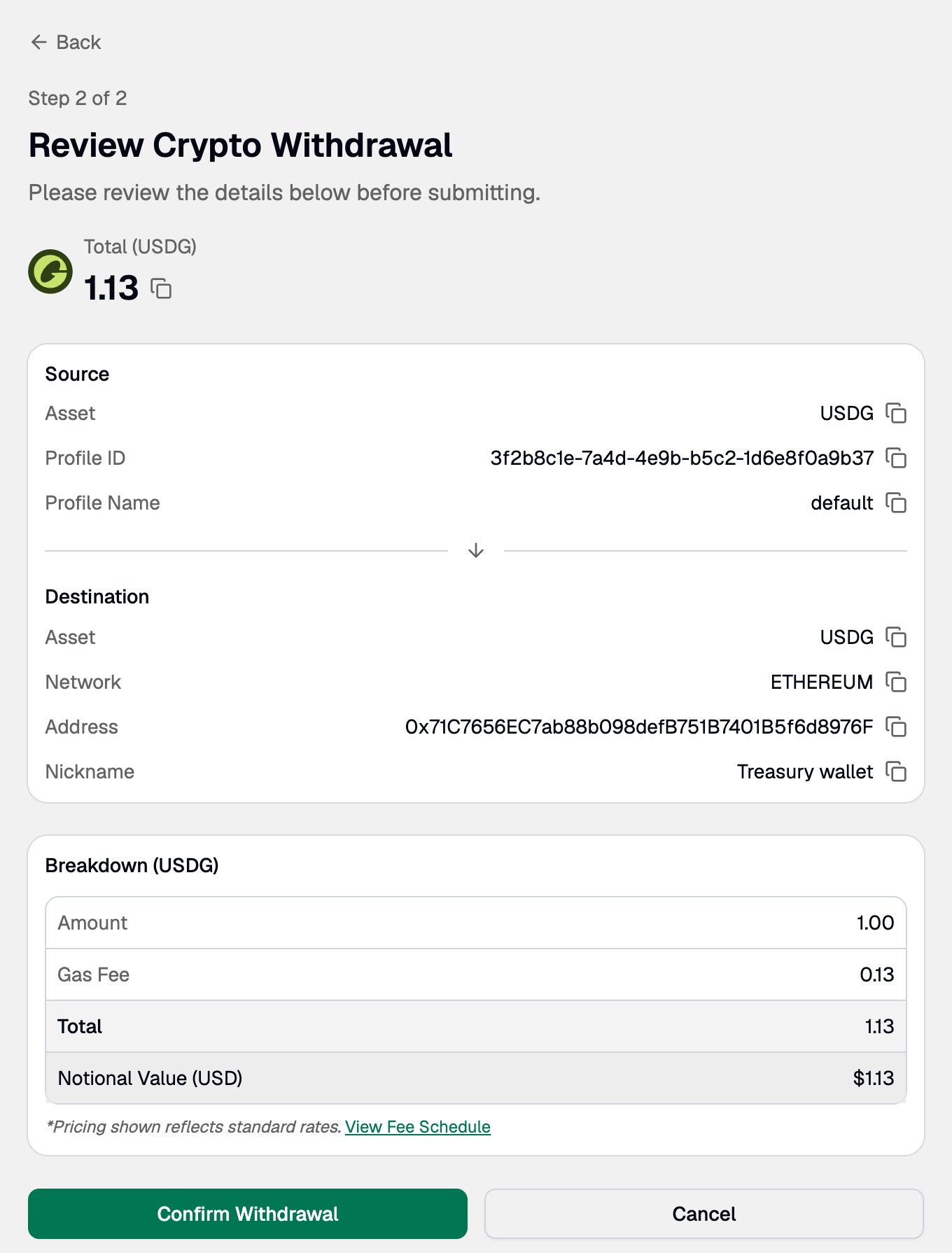
Fill in and submit the withdrawal as usual.
 ### ➋ Review the request in the Paxos window
A Paxos window opens on `authorize.paxos.com` (`authorize.sandbox.paxos.com` in Sandbox), separate from the Dashboard. It shows the details of the request, such as the amount, asset, network and destination address.
### ➋ Review the request in the Paxos window
A Paxos window opens on `authorize.paxos.com` (`authorize.sandbox.paxos.com` in Sandbox), separate from the Dashboard. It shows the details of the request, such as the amount, asset, network and destination address.
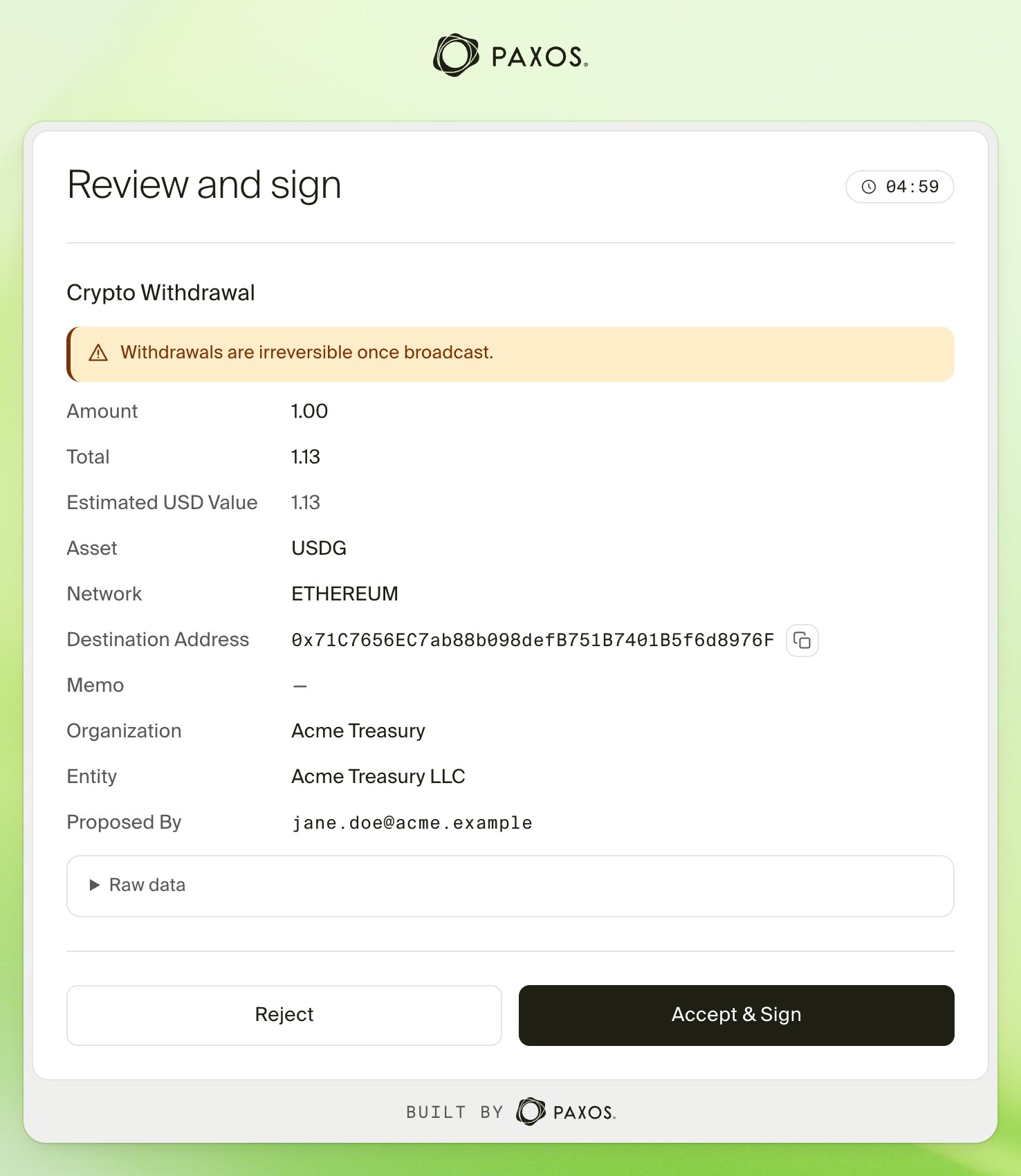 Check that the details match what you entered. If they do, click **Accept & Sign**, then confirm with your passkey or security key. If anything looks wrong, click **Reject** and nothing is submitted.
Always check the details in the Paxos window, not just in the Dashboard. The window shows exactly what you are authorizing.
### ➌ Submitted
The window closes and the Dashboard submits the request. If an approval rule applies, the request goes to your approvers. Otherwise, Paxos processes it.
## If you do not have a verified key
If you do not have a verified key, the request is not submitted and the Dashboard tells you what to do next:
* **No key yet:** [create a key](/guides/dashboard/admin/authorization-keys#create-your-key).
* **Key waiting for verification:** [send Paxos your verification code](/guides/dashboard/admin/authorization-keys#verify-your-key).
Check that the details match what you entered. If they do, click **Accept & Sign**, then confirm with your passkey or security key. If anything looks wrong, click **Reject** and nothing is submitted.
Always check the details in the Paxos window, not just in the Dashboard. The window shows exactly what you are authorizing.
### ➌ Submitted
The window closes and the Dashboard submits the request. If an approval rule applies, the request goes to your approvers. Otherwise, Paxos processes it.
## If you do not have a verified key
If you do not have a verified key, the request is not submitted and the Dashboard tells you what to do next:
* **No key yet:** [create a key](/guides/dashboard/admin/authorization-keys#create-your-key).
* **Key waiting for verification:** [send Paxos your verification code](/guides/dashboard/admin/authorization-keys#verify-your-key).
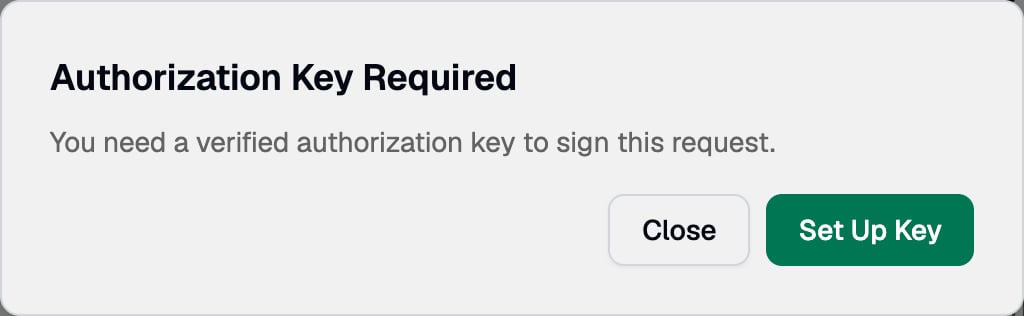 Once your key is verified, submit the request again.
If you have lost your key, see [If you lose your key](/guides/dashboard/admin/authorization-keys#if-you-lose-your-key).
## Frequently asked questions
Nothing is submitted. Submit the request again to reopen the window.
Each Paxos window is open for a limited time. Close it and submit the request again.
Contact [Support](https://support.paxos.com). Only Paxos can change this setting.
> Questions? Contact [Support](https://support.paxos.com).
Once your key is verified, submit the request again.
If you have lost your key, see [If you lose your key](/guides/dashboard/admin/authorization-keys#if-you-lose-your-key).
## Frequently asked questions
Nothing is submitted. Submit the request again to reopen the window.
Each Paxos window is open for a limited time. Close it and submit the request again.
Contact [Support](https://support.paxos.com). Only Paxos can change this setting.
> Questions? Contact [Support](https://support.paxos.com).