> ## Documentation Index
> Fetch the complete documentation index at: https://docs.paxos.com/llms.txt
> Use this file to discover all available pages before exploring further.
# Authorization Keys
> Create, verify and manage the Authorization Key you use to sign sensitive actions in the Dashboard.
An Authorization Key proves it was you who started or approved a sensitive action in the Dashboard. When your organization requires one, the Dashboard asks you to sign with your key before the action is submitted.
Your key can be:
* **A passkey**, saved in a password manager such as iCloud Keychain, Google Password Manager or 1Password
* **A hardware security key**, such as a YubiKey
You confirm each signature with your fingerprint, face or PIN. Each Dashboard user creates their own key, and one key works across every entity in your organization. Paxos must verify your key before you can use it.
Your Authorization Key is separate from the passkey you use to [sign in to the Dashboard](/guides/dashboard/passkeys), even if both are in the same password manager.
## Before you start
Creating a key takes a few minutes, but Paxos must verify it before you can sign. Set up your key early so you are not blocked when your organization starts requiring it.
If you need a key, the Dashboard reminds you. Click **Set Up Key** to go to the Security page.
 ## Create your key
### ➊ Open the Security page
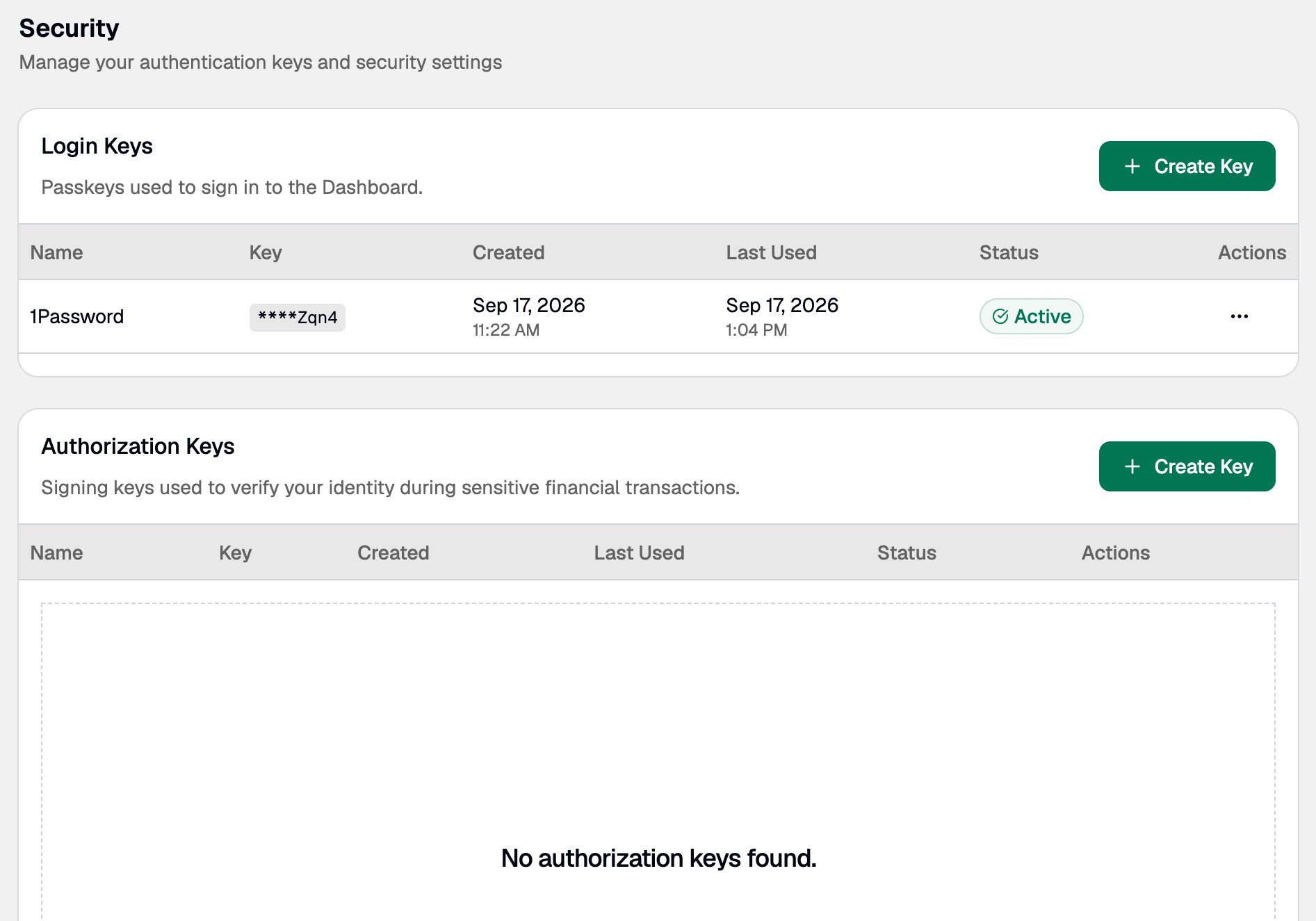
Click the account menu in the bottom-left corner of the Dashboard, then select **Settings** > **Security**.
## Create your key
### ➊ Open the Security page
Click the account menu in the bottom-left corner of the Dashboard, then select **Settings** > **Security**.
 ### ➋ Name your key
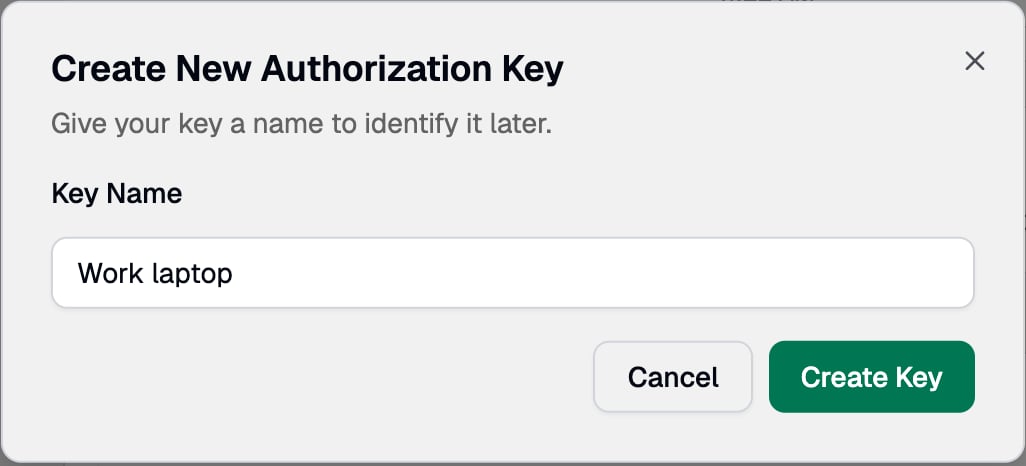
In the **Authorization Keys** section, click **Create Key**, enter a name you will recognize, such as `Work laptop` or `1Password`, then click **Create Key**.
### ➋ Name your key
In the **Authorization Keys** section, click **Create Key**, enter a name you will recognize, such as `Work laptop` or `1Password`, then click **Create Key**.
 ### ➌ Register the key
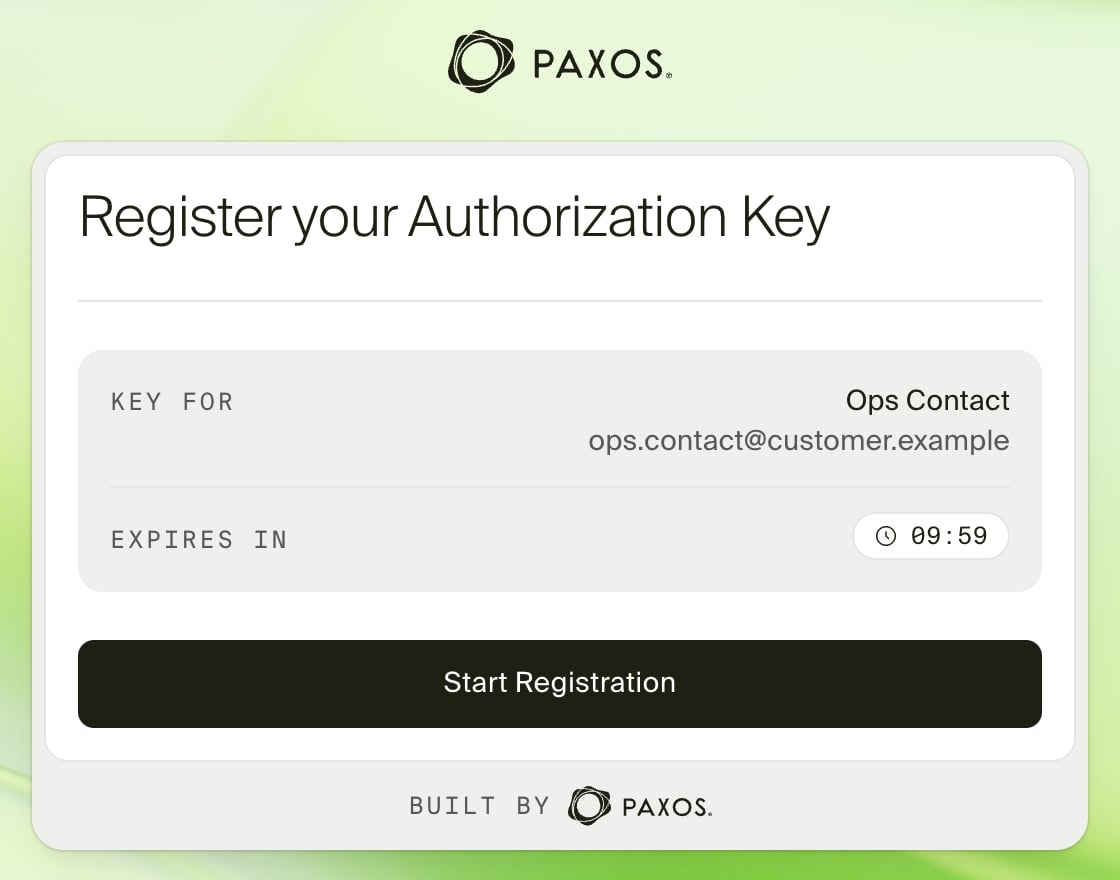
A Paxos window opens on `authorize.paxos.com` (`authorize.sandbox.paxos.com` in Sandbox). Check that the name and email shown are yours, then click **Start Registration**.
### ➌ Register the key
A Paxos window opens on `authorize.paxos.com` (`authorize.sandbox.paxos.com` in Sandbox). Check that the name and email shown are yours, then click **Start Registration**.
 When your browser asks where to save the key, choose a passkey or a security key.
Save the passkey to a password manager that syncs across your devices, such as 1Password, iCloud Keychain or Google Password Manager in Chrome. If you replace or lose a device, your key is still available on your other devices.
**Questions about passkeys?**
Start by contacting your IT organization. Your company may already have policies for using passkeys and can provide support when creating and using a passkey.
Paxos recommends saving and using passkeys with:
* [iCloud Keychain](https://support.apple.com/guide/passwords/passkeys-mchl4af65d1a/mac)
* [Windows Hello](https://support.microsoft.com/en-us/account-billing/signing-in-with-a-passkey-09a49a86-ca47-406c-8acc-ed0e3c852c6d#)
* [Google Account](https://support.google.com/chrome/answer/13168025)
* [1Password](https://support.1password.com/save-use-passkeys/)
* [Proton Pass](https://proton.me/support/pass-use-passkeys)
* Other third-party password managers that enable passkey synchronization across devices
Learn more about [using passkeys on the Paxos platform](/guides/dashboard/passkeys) or [try the passkey demo](https://passkey.org/) on [https://passkey.org](https://passkey.org).
Insert or tap your security key, then enter its PIN or touch its fingerprint sensor. The key must have a PIN or fingerprint set up.
Security keys cannot be copied, so consider registering a second one as a backup.
If the window does not open, allow pop-ups for the Dashboard and click **Create Key** again. You have 10 minutes to finish registering.
### ➍ Save your verification code
When registration finishes, the window shows a 16-character verification code in the format `XXXX-XXXX-XXXX-XXXX`. Copy it and save it somewhere safe, such as a secure note in your password manager.
When your browser asks where to save the key, choose a passkey or a security key.
Save the passkey to a password manager that syncs across your devices, such as 1Password, iCloud Keychain or Google Password Manager in Chrome. If you replace or lose a device, your key is still available on your other devices.
**Questions about passkeys?**
Start by contacting your IT organization. Your company may already have policies for using passkeys and can provide support when creating and using a passkey.
Paxos recommends saving and using passkeys with:
* [iCloud Keychain](https://support.apple.com/guide/passwords/passkeys-mchl4af65d1a/mac)
* [Windows Hello](https://support.microsoft.com/en-us/account-billing/signing-in-with-a-passkey-09a49a86-ca47-406c-8acc-ed0e3c852c6d#)
* [Google Account](https://support.google.com/chrome/answer/13168025)
* [1Password](https://support.1password.com/save-use-passkeys/)
* [Proton Pass](https://proton.me/support/pass-use-passkeys)
* Other third-party password managers that enable passkey synchronization across devices
Learn more about [using passkeys on the Paxos platform](/guides/dashboard/passkeys) or [try the passkey demo](https://passkey.org/) on [https://passkey.org](https://passkey.org).
Insert or tap your security key, then enter its PIN or touch its fingerprint sensor. The key must have a PIN or fingerprint set up.
Security keys cannot be copied, so consider registering a second one as a backup.
If the window does not open, allow pop-ups for the Dashboard and click **Create Key** again. You have 10 minutes to finish registering.
### ➍ Save your verification code
When registration finishes, the window shows a 16-character verification code in the format `XXXX-XXXX-XXXX-XXXX`. Copy it and save it somewhere safe, such as a secure note in your password manager.
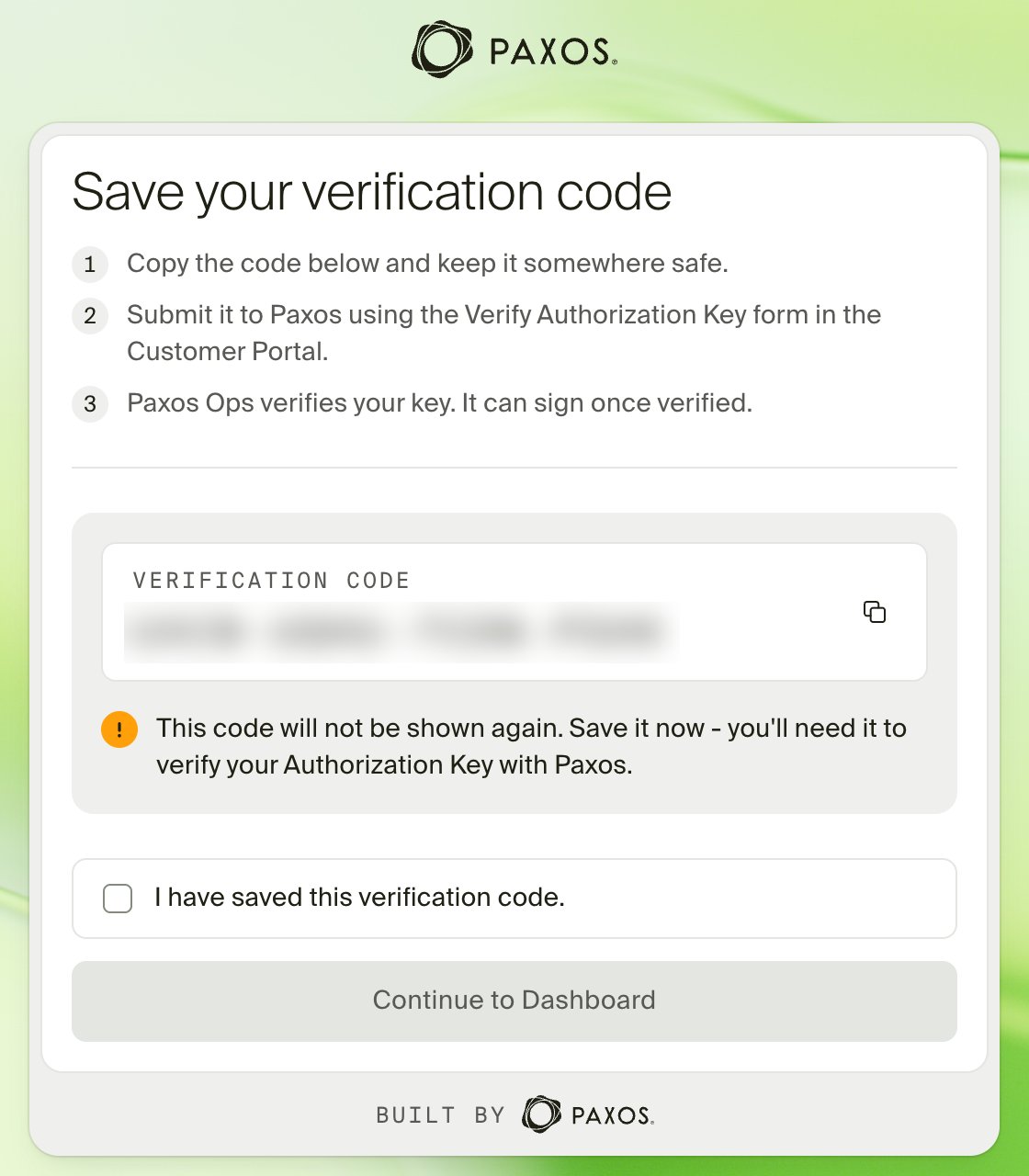 The code is shown only once. If you lose it, revoke the key and create a new one.
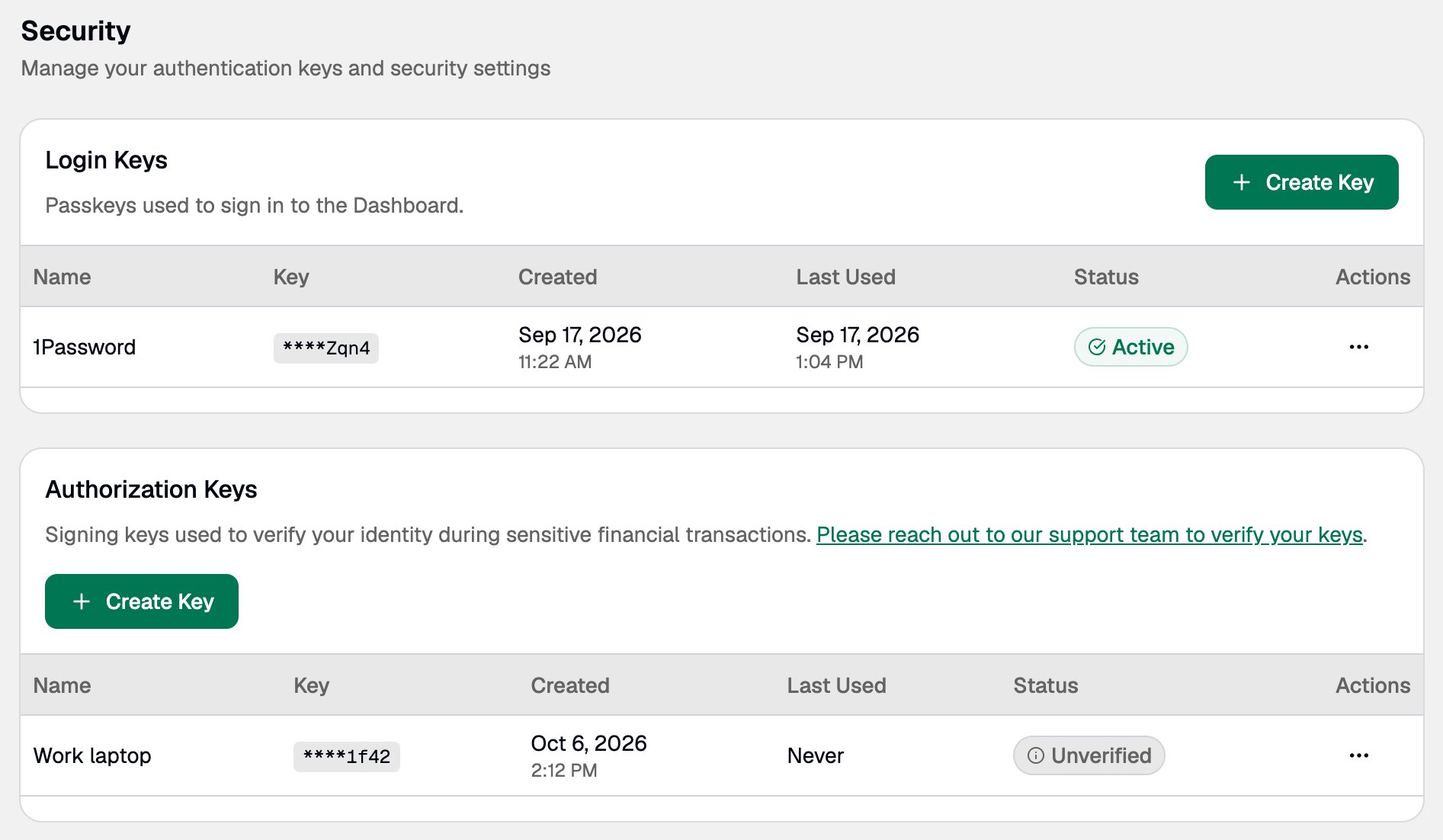
Select **I have saved this verification code**, then click **Continue to Dashboard**. Your key is not added until you click **Continue to Dashboard**, so do not close the window before then. Your key appears on the Security page as **Unverified**.
The code is shown only once. If you lose it, revoke the key and create a new one.
Select **I have saved this verification code**, then click **Continue to Dashboard**. Your key is not added until you click **Continue to Dashboard**, so do not close the window before then. Your key appears on the Security page as **Unverified**.
 ## Verify your key
### ➊ Send Paxos your verification code
Complete the [Verify Authorization Key form](https://customerportal.paxos.com/forms/verify-authorization-key) in the Customer Portal with your verification code and key name. You can also open the form from **Request Verification** on the Dashboard banner or the link on the Security page.
## Verify your key
### ➊ Send Paxos your verification code
Complete the [Verify Authorization Key form](https://customerportal.paxos.com/forms/verify-authorization-key) in the Customer Portal with your verification code and key name. You can also open the form from **Request Verification** on the Dashboard banner or the link on the Security page.
 **Setting up a team?** Have everyone create their key first, then send all the codes in one form.
### ➋ Wait for Paxos to confirm
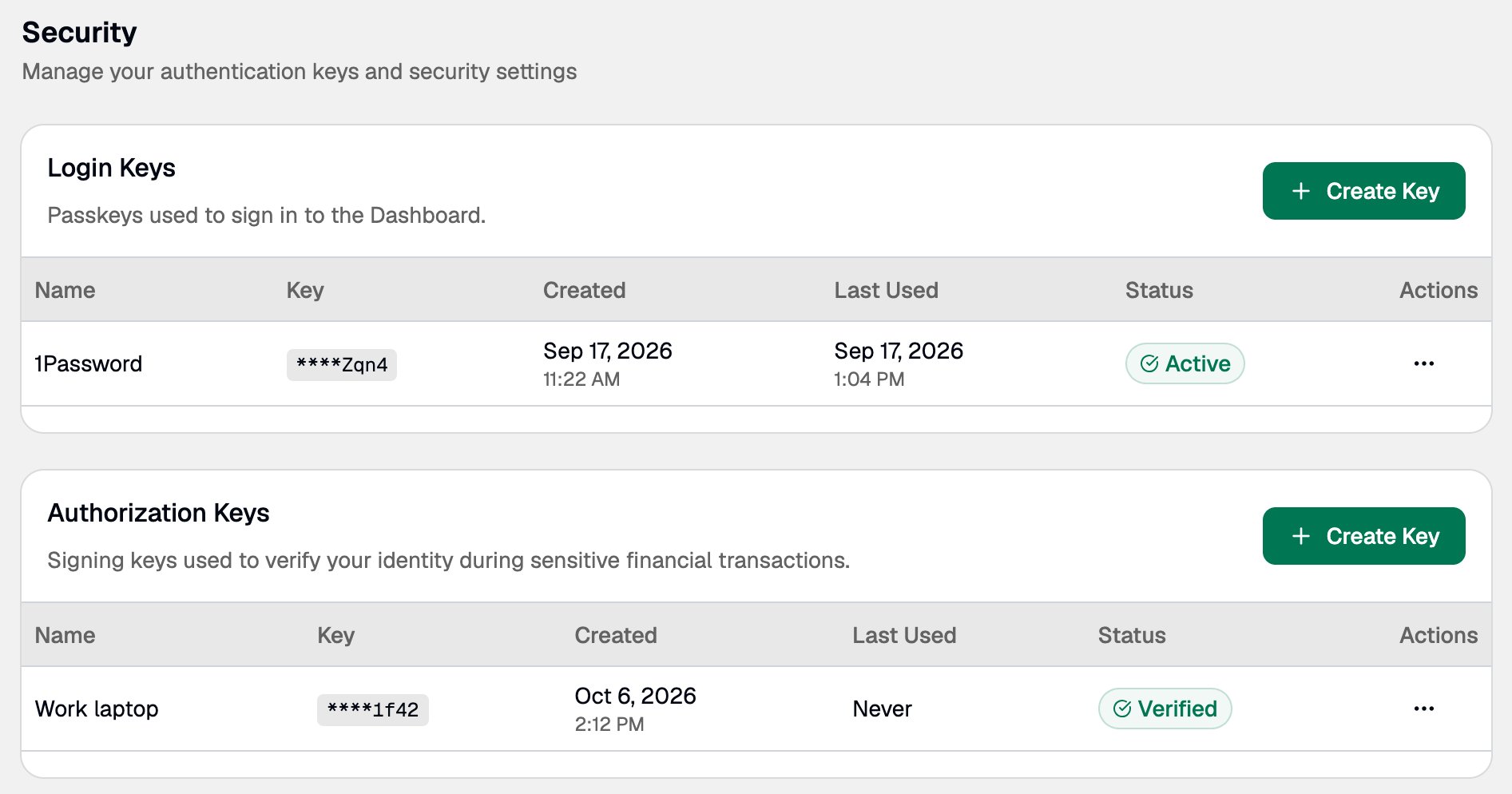
Once Paxos verifies your key, its status changes to **Verified** and the banner disappears. You can now sign actions.
**Setting up a team?** Have everyone create their key first, then send all the codes in one form.
### ➋ Wait for Paxos to confirm
Once Paxos verifies your key, its status changes to **Verified** and the banner disappears. You can now sign actions.
 ## Key statuses
| Status | What it means |
| - | - |
| **Unverified** | Waiting for Paxos to verify. You cannot sign with it yet. |
| **Verified** | Ready to use. |
| **Revoked** | You revoked the key. It can no longer be used. |
## If you lose your key
If you lose your only security key, or your passkey is no longer on any of your devices, the key cannot be recovered. To sign again:
1. [Revoke the lost key](#revoke-a-key).
2. [Create a new key](#create-your-key).
3. [Send Paxos the new verification code](#verify-your-key).
You cannot sign until Paxos verifies the new key, so start straight away.
Losing your Authorization Key does not affect how you sign in. If you have also lost your sign-in passkey, see [Lost Access to Your Passkey](/guides/dashboard/passkeys#lost-access-to-your-passkey).
## Revoke a key
Revoke a key if you no longer use it, have lost it, or think someone else might have access to it.
1. Go to **Settings** > **Security**.
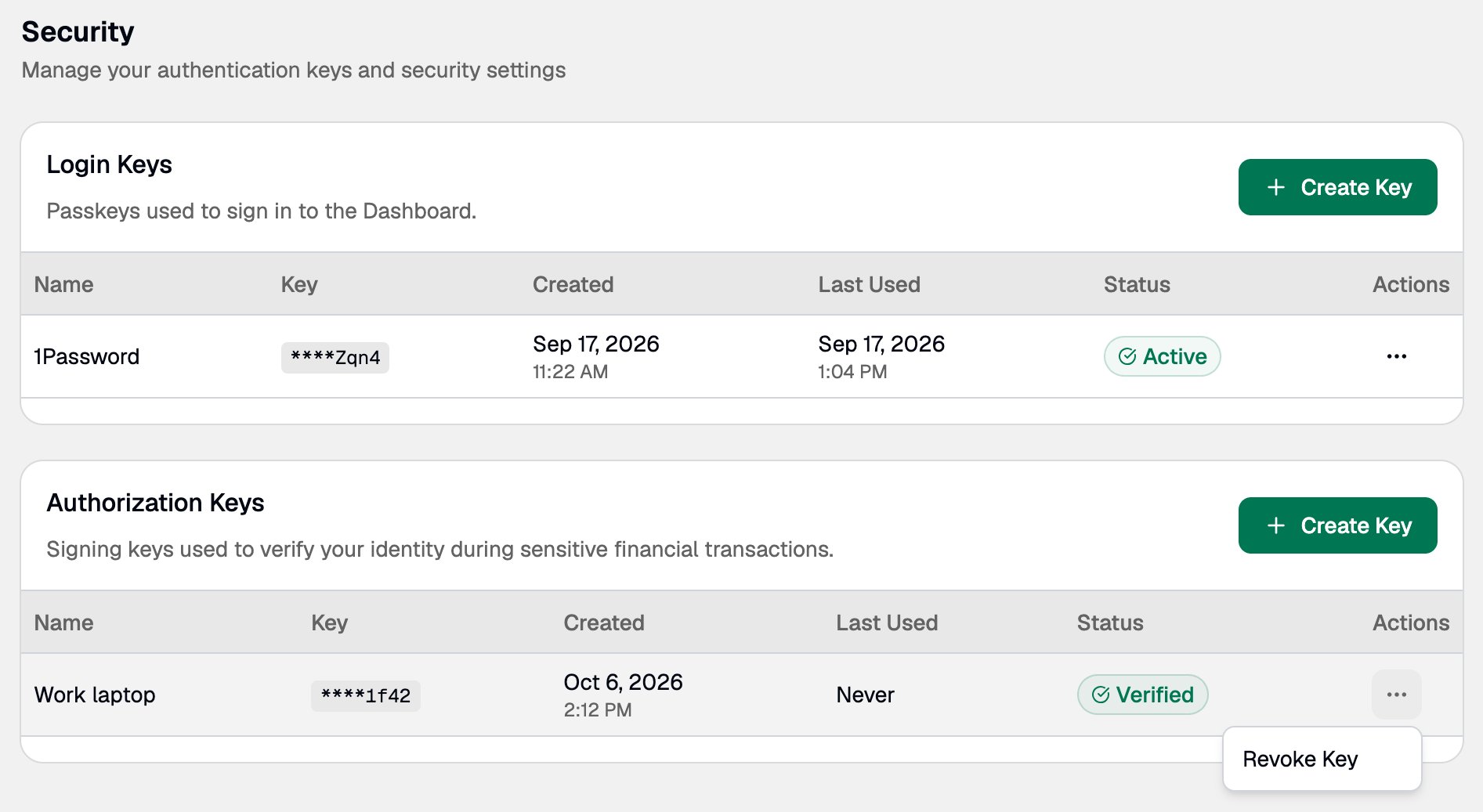
2. In **Authorization Keys**, open the actions menu on the key's row and select **Revoke Key**.
3. Click **Revoke Key** again to confirm.
## Key statuses
| Status | What it means |
| - | - |
| **Unverified** | Waiting for Paxos to verify. You cannot sign with it yet. |
| **Verified** | Ready to use. |
| **Revoked** | You revoked the key. It can no longer be used. |
## If you lose your key
If you lose your only security key, or your passkey is no longer on any of your devices, the key cannot be recovered. To sign again:
1. [Revoke the lost key](#revoke-a-key).
2. [Create a new key](#create-your-key).
3. [Send Paxos the new verification code](#verify-your-key).
You cannot sign until Paxos verifies the new key, so start straight away.
Losing your Authorization Key does not affect how you sign in. If you have also lost your sign-in passkey, see [Lost Access to Your Passkey](/guides/dashboard/passkeys#lost-access-to-your-passkey).
## Revoke a key
Revoke a key if you no longer use it, have lost it, or think someone else might have access to it.
1. Go to **Settings** > **Security**.
2. In **Authorization Keys**, open the actions menu on the key's row and select **Revoke Key**.
3. Click **Revoke Key** again to confirm.
 Revoking a key cannot be undone. To sign again, create a new key and have Paxos verify it.
## Frequently asked questions
Yes, for example a passkey and a backup security key. Paxos verifies each key separately.
You may not need a second key if you save your passkey to a password manager that syncs, such as 1Password or Google Password Manager in Chrome. It is then available on all your devices.
Revoke the unverified key, create a new one, and send Paxos the new code.
Your key was not added. Click **Create Key** to start again. If your password manager saved a passkey from the unfinished attempt, you can delete it.
Authorization Keys appear only when your organization uses them. Contact your Dashboard administrator or [Support](https://support.paxos.com).
> Questions? Contact [Support](https://support.paxos.com).
Revoking a key cannot be undone. To sign again, create a new key and have Paxos verify it.
## Frequently asked questions
Yes, for example a passkey and a backup security key. Paxos verifies each key separately.
You may not need a second key if you save your passkey to a password manager that syncs, such as 1Password or Google Password Manager in Chrome. It is then available on all your devices.
Revoke the unverified key, create a new one, and send Paxos the new code.
Your key was not added. Click **Create Key** to start again. If your password manager saved a passkey from the unfinished attempt, you can delete it.
Authorization Keys appear only when your organization uses them. Contact your Dashboard administrator or [Support](https://support.paxos.com).
> Questions? Contact [Support](https://support.paxos.com).