> ## Documentation Index
> Fetch the complete documentation index at: https://docs.paxos.com/llms.txt
> Use this file to discover all available pages before exploring further.
# Notifications
> Stay on top of pending approvals, account alerts, and important events — all in one place.
Notifications surface items that need your attention — [pending approvals](/guides/dashboard/admin/approvals), account alerts, and important events — without leaving your current page. Access them from the **Notifications** item in the Paxos Dashboard sidebar.
Want to change how Paxos reaches you (for example, turn email notifications on or off)? Go to [**Settings** → **Notifications**](https://dashboard.paxos.com/settings/notifications). See [Notification Settings](#notification-settings) below for details.
## The Notifications Drawer
Click **Notifications** in the sidebar to open the Notifications drawer. The sidebar item displays a badge with the number of unread items, so you can see at a glance when something needs your attention.
Once open, the drawer displays:
* A running count next to the title, showing how many items still need your attention. The count is capped at 50 and will show `50+` for any additional notifications so it stays readable.
* Your notifications list, sorted by most recent. Each item shows a title, a short description, and how long ago it arrived (for example, `2 hours ago`).
* Unread notifications are visually highlighted so they are easy to spot at a glance.
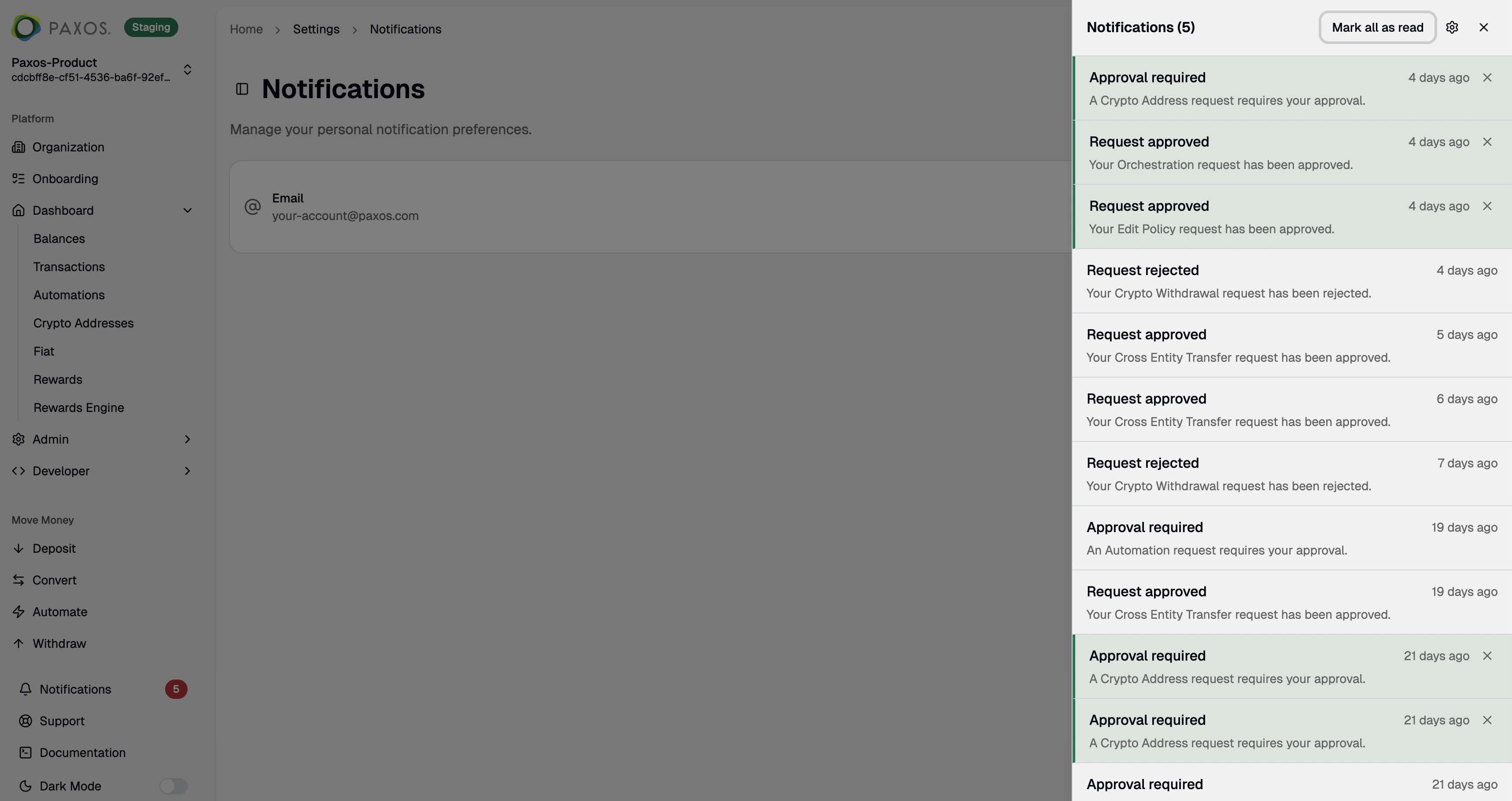 * Urgent and warning notifications are color-coded so critical items stand out from routine ones.
 ## Interact with Notifications
Each notification is designed to get you where you need to go with a single click:
* **Open a notification**: Click anywhere on the notification to jump straight to the relevant page — a pending approval or another action. The notification is automatically marked as read.
* **Dismiss a notification**: Click the ✕ icon to dismiss a notification and remove it from the drawer.
* **Mark all as read**: When you have unread items, use **Mark all as read** in the drawer header to clear the unread count in one click.
The drawer is keyboard accessible. Use **Tab** to move between notifications and **Enter** or **Space** to open one.
## Real-Time Updates
You do not need to refresh the page to see new activity:
* New notifications appear in the drawer the moment they are created.
* A brief toast message pops up so you are aware even when the drawer is closed. The toast includes a **Review** button to jump directly to the action.
* If a notification is no longer relevant — for example, someone else already approved a request — it updates automatically so you are not left clicking on stale items.
## Account Recovery Prompt
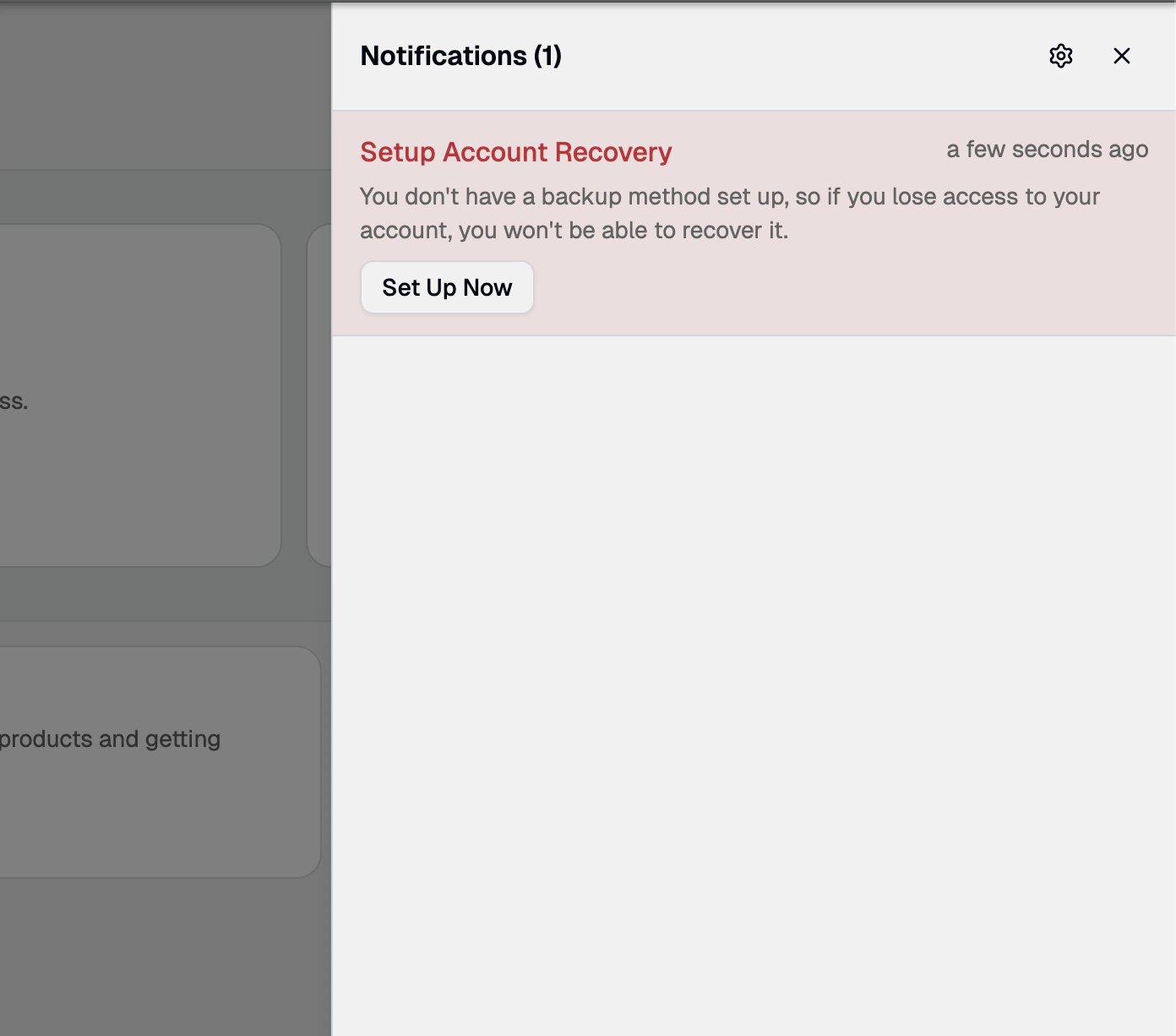
If you have not set up a backup recovery method, a prominent red notification stays pinned at the top of your drawer reminding you to **Set Up Now**.
Setting up account recovery protects you from losing access to your account. We recommend addressing this prompt right away. See [Account Recovery](/guides/dashboard/admin/account-recovery) for setup steps.
## Quick Access to Settings
A gear icon in the drawer header takes you straight to your [Notification Settings](https://dashboard.paxos.com/settings/notifications), so you can adjust how you are notified without hunting through menus.
***
## Notification Settings
The [Notification Settings](https://dashboard.paxos.com/settings/notifications) page (**Settings** → **Notifications**) lets you control how Paxos reaches you outside the app.
### Email Notifications
The Email Notifications section displays the email address associated with your account and lets you control whether Paxos sends notifications to your inbox.
## Interact with Notifications
Each notification is designed to get you where you need to go with a single click:
* **Open a notification**: Click anywhere on the notification to jump straight to the relevant page — a pending approval or another action. The notification is automatically marked as read.
* **Dismiss a notification**: Click the ✕ icon to dismiss a notification and remove it from the drawer.
* **Mark all as read**: When you have unread items, use **Mark all as read** in the drawer header to clear the unread count in one click.
The drawer is keyboard accessible. Use **Tab** to move between notifications and **Enter** or **Space** to open one.
## Real-Time Updates
You do not need to refresh the page to see new activity:
* New notifications appear in the drawer the moment they are created.
* A brief toast message pops up so you are aware even when the drawer is closed. The toast includes a **Review** button to jump directly to the action.
* If a notification is no longer relevant — for example, someone else already approved a request — it updates automatically so you are not left clicking on stale items.
## Account Recovery Prompt
If you have not set up a backup recovery method, a prominent red notification stays pinned at the top of your drawer reminding you to **Set Up Now**.
Setting up account recovery protects you from losing access to your account. We recommend addressing this prompt right away. See [Account Recovery](/guides/dashboard/admin/account-recovery) for setup steps.
## Quick Access to Settings
A gear icon in the drawer header takes you straight to your [Notification Settings](https://dashboard.paxos.com/settings/notifications), so you can adjust how you are notified without hunting through menus.
***
## Notification Settings
The [Notification Settings](https://dashboard.paxos.com/settings/notifications) page (**Settings** → **Notifications**) lets you control how Paxos reaches you outside the app.
### Email Notifications
The Email Notifications section displays the email address associated with your account and lets you control whether Paxos sends notifications to your inbox.
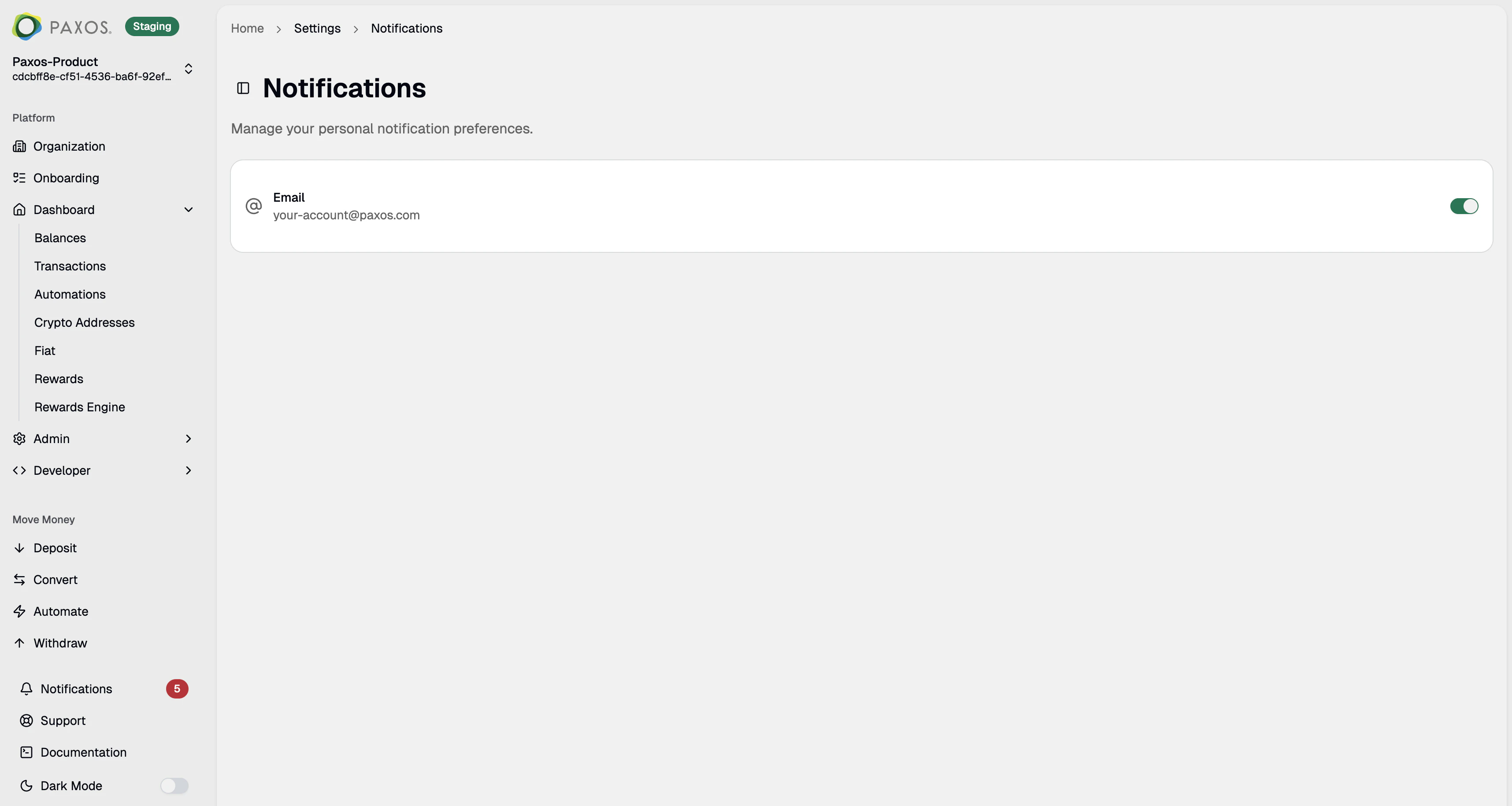 To manage email notifications:
1. Go to [**Settings** → **Notifications**](https://dashboard.paxos.com/settings/notifications).
2. Use the toggle to turn email notifications **on** or **off**.
Changes save automatically.
Disabling email notifications does not hide in-app notifications — you will still see them in the drawer. This setting only controls whether Paxos also sends them to your inbox.
> Questions? Contact [Support](https://support.paxos.com).
To manage email notifications:
1. Go to [**Settings** → **Notifications**](https://dashboard.paxos.com/settings/notifications).
2. Use the toggle to turn email notifications **on** or **off**.
Changes save automatically.
Disabling email notifications does not hide in-app notifications — you will still see them in the drawer. This setting only controls whether Paxos also sends them to your inbox.
> Questions? Contact [Support](https://support.paxos.com).