> ## Documentation Index
> Fetch the complete documentation index at: https://docs.paxos.com/llms.txt
> Use this file to discover all available pages before exploring further.
# Withdraw
> Send funds from your Paxos account to an external destination or another Profile or Entity.
Go to the [Dashboard](https://dashboard.paxos.com/) and click **Withdraw** in the top-right corner to send funds off the Paxos platform or move them between Profiles and Entities.
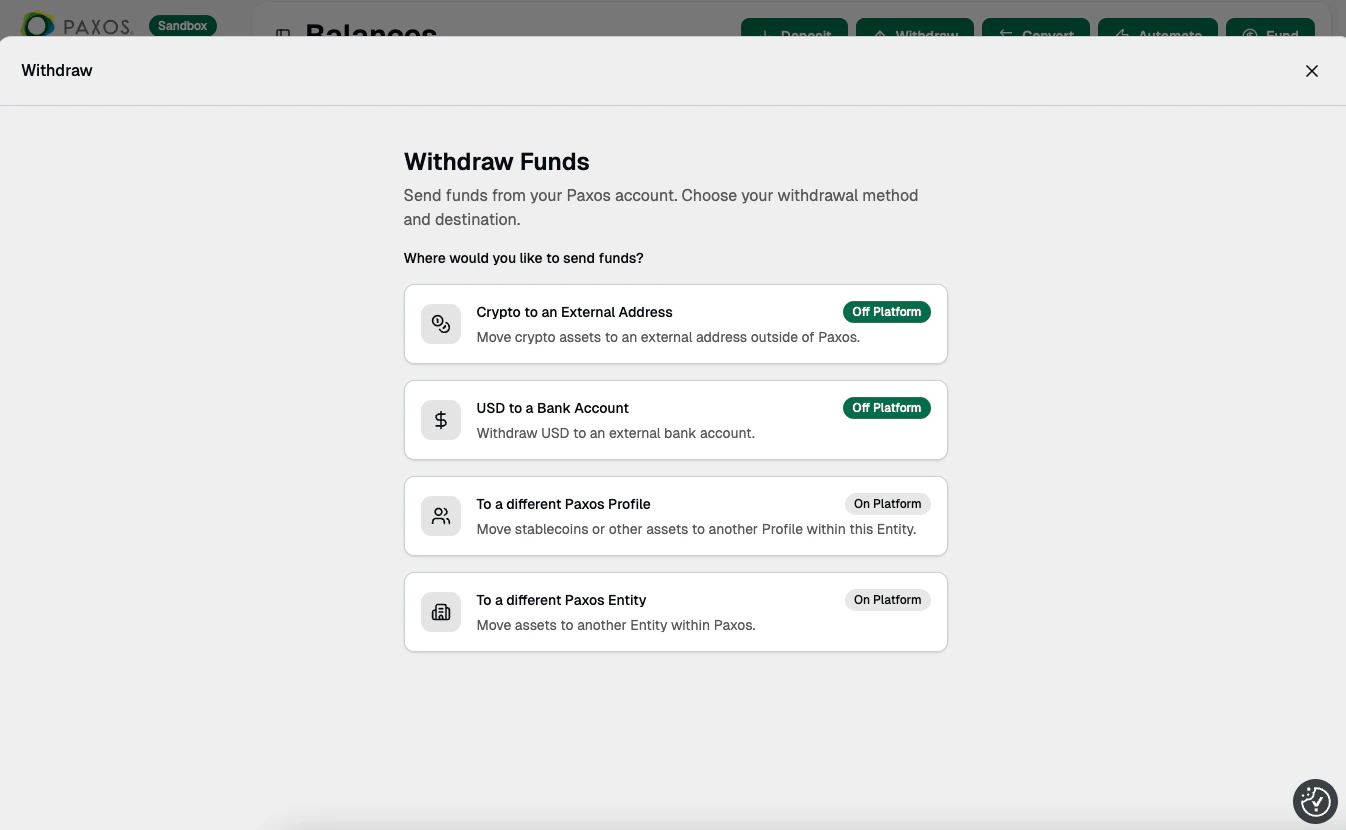 Use the [**Approvals**](/guides/dashboard/admin/approvals) functionality to require additional team members to review crypto withdrawals, fiat withdrawals, and entity transfers before they are completed.
## Crypto to an External Address
Move crypto assets to an external address outside of Paxos.
1. Select **Crypto to an External Address**.
2. Choose the **Asset** and select the **Network** for the withdrawal.
3. Select the [Profile](/guides/dashboard/organization#profile) where the assets will be withdrawn from (the source).
4. Choose a saved address where the asset will be sent.
Use the [**Approvals**](/guides/dashboard/admin/approvals) functionality to require additional team members to review crypto withdrawals, fiat withdrawals, and entity transfers before they are completed.
## Crypto to an External Address
Move crypto assets to an external address outside of Paxos.
1. Select **Crypto to an External Address**.
2. Choose the **Asset** and select the **Network** for the withdrawal.
3. Select the [Profile](/guides/dashboard/organization#profile) where the assets will be withdrawn from (the source).
4. Choose a saved address where the asset will be sent.
Optional: [Create a new network address](/guides/dashboard/withdrawal-addresses).
5. Enter the **Amount** to withdraw.
Optional: Add a note for the withdrawal.
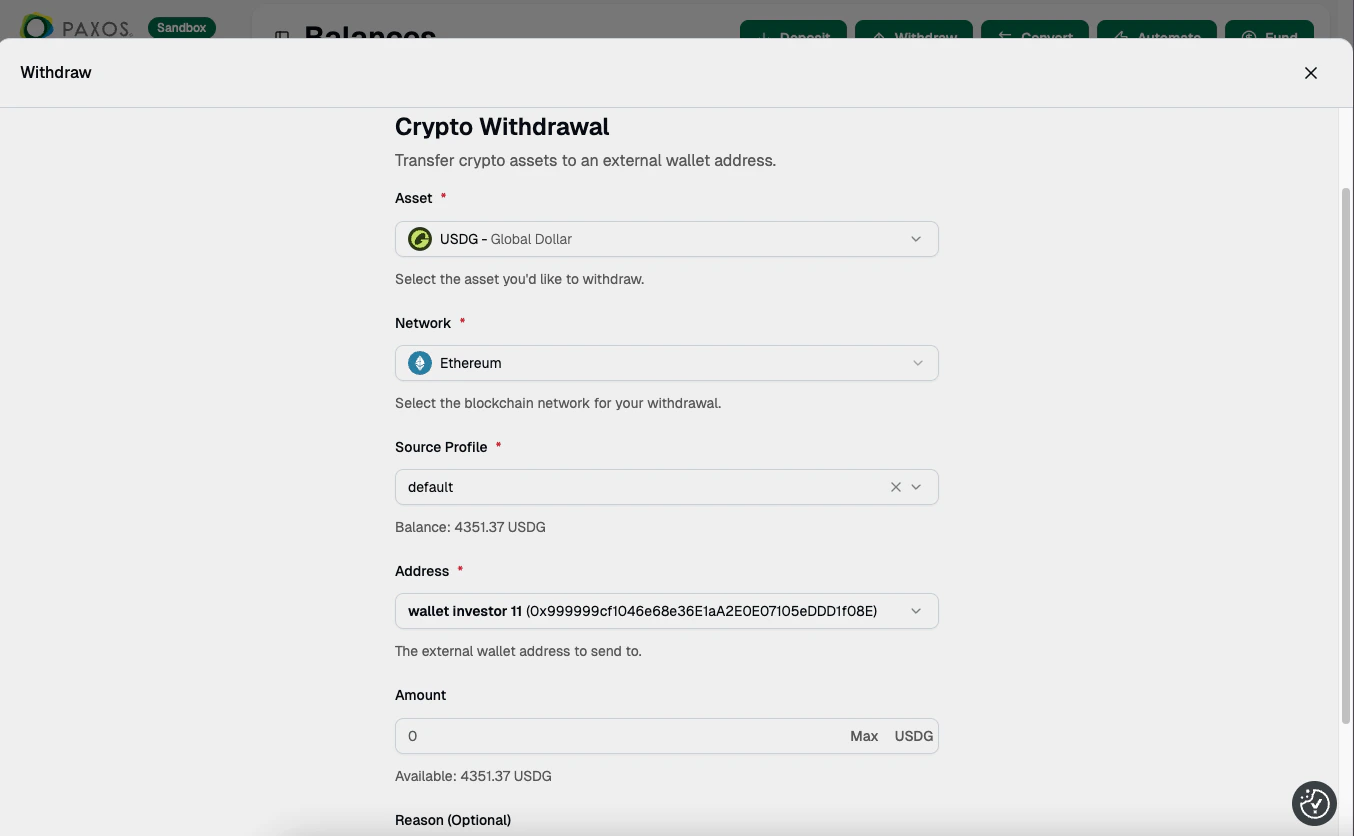 Go to [Transactions > Deposits & Transfers](https://dashboard.paxos.com/dashboard/transactions/deposits-transfers) to monitor activity.
## USD to a Bank Account
Withdraw USD to an external bank account.
1. Select **USD to a Bank Account**.
2. Select the [Profile](/guides/dashboard/organization#profile) where the USD will be withdrawn from (the source).
3. Choose a saved fiat account where the USD will be sent.
Go to [Transactions > Deposits & Transfers](https://dashboard.paxos.com/dashboard/transactions/deposits-transfers) to monitor activity.
## USD to a Bank Account
Withdraw USD to an external bank account.
1. Select **USD to a Bank Account**.
2. Select the [Profile](/guides/dashboard/organization#profile) where the USD will be withdrawn from (the source).
3. Choose a saved fiat account where the USD will be sent.
Optional: [Add a fiat account](/guides/dashboard/fiat).
4. Enter the **Amount** to withdraw.
Optional: Add a note for the withdrawal.
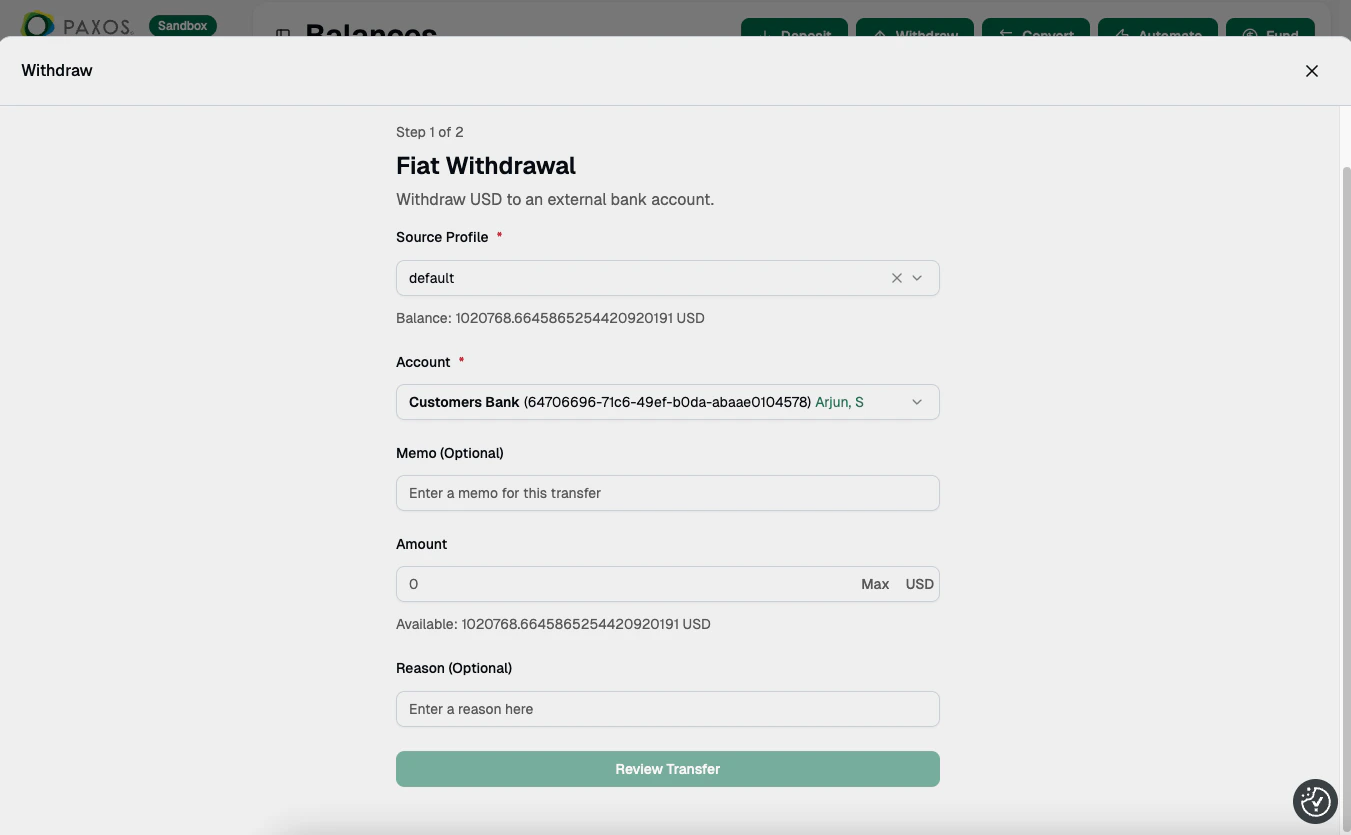 Go to [Transactions > Deposits & Transfers](https://dashboard.paxos.com/dashboard/transactions/deposits-transfers) to monitor activity.
## To a Different Paxos Profile
Move stablecoins or other assets to another Profile within the same Entity.
Ensure the destination [Profile](/guides/dashboard/organization#profile) already exists before beginning the withdrawal.
1. Select **To a different Paxos Profile**.
2. Choose the **Asset**.
3. Select the Profile where the assets will be withdrawn from (the source).
4. Choose the Profile where the assets will be sent (the destination).
5. Enter the **Amount** to withdraw.
Go to [Transactions > Deposits & Transfers](https://dashboard.paxos.com/dashboard/transactions/deposits-transfers) to monitor activity.
## To a Different Paxos Profile
Move stablecoins or other assets to another Profile within the same Entity.
Ensure the destination [Profile](/guides/dashboard/organization#profile) already exists before beginning the withdrawal.
1. Select **To a different Paxos Profile**.
2. Choose the **Asset**.
3. Select the Profile where the assets will be withdrawn from (the source).
4. Choose the Profile where the assets will be sent (the destination).
5. Enter the **Amount** to withdraw.
Optional: Add a note for the withdrawal.
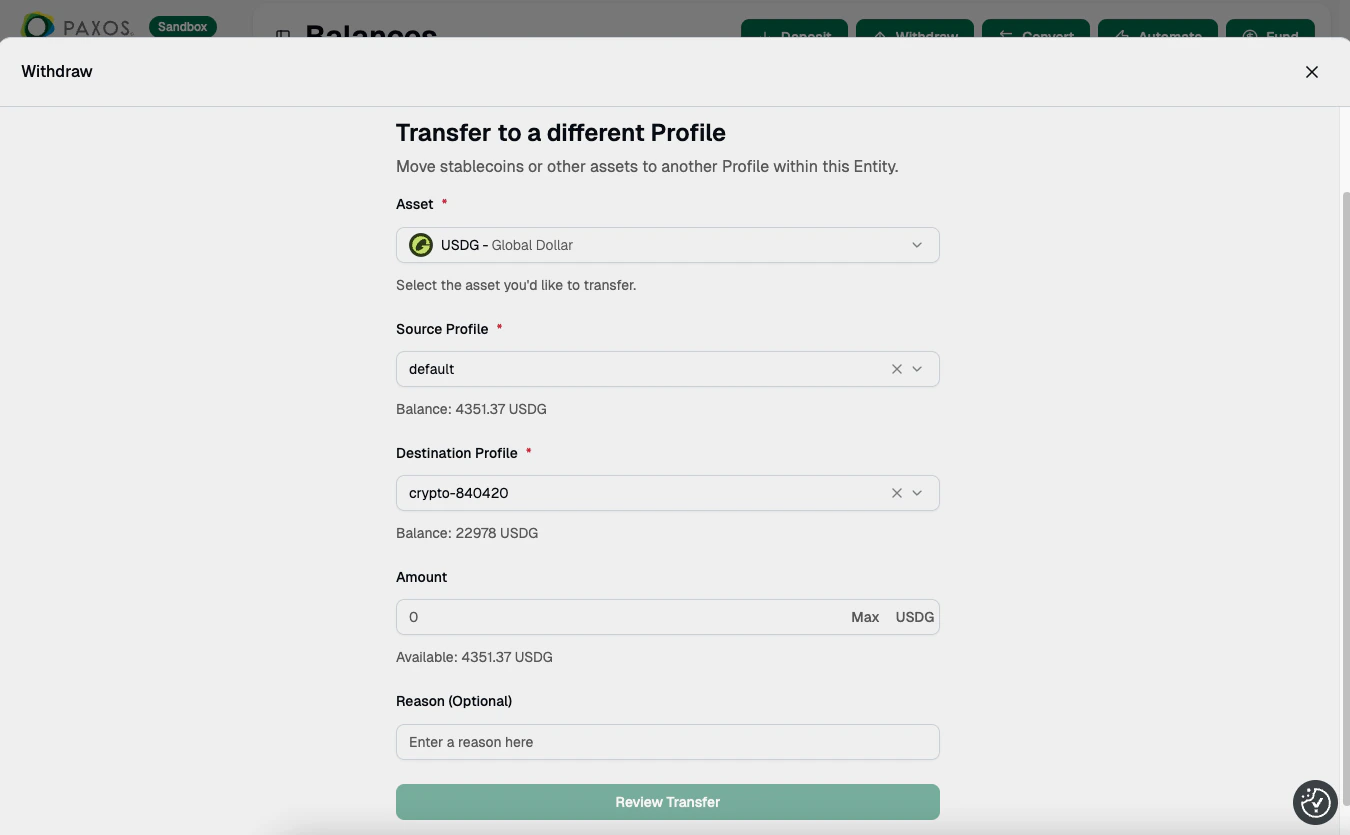 Go to [Transactions > Deposits & Transfers](https://dashboard.paxos.com/dashboard/transactions/deposits-transfers) to monitor activity.
## To a Different Paxos Entity
Move assets between two Entities belonging to the same Organization or to a different Organization on the Paxos platform.
> Withdrawing USD between Entities is prohibited in some jurisdictions.
> Contact [Support](https://support.paxos.com) if you run into any problems with this restriction.
Ensure the destination [Profile](/guides/dashboard/organization#profile) already exists before beginning the withdrawal.
This may require contacting someone outside your Organization to get the destination Profile ID.
1. Select **To a different Paxos Entity**.
2. Choose the **Asset**.
> If an asset is not listed, it is not available for withdrawal.
1. Select the Profile where the assets will be withdrawn from (the source).
2. Enter the Profile ID where the assets will be sent (the destination).
3. Enter the **Amount** to withdraw.
Go to [Transactions > Deposits & Transfers](https://dashboard.paxos.com/dashboard/transactions/deposits-transfers) to monitor activity.
## To a Different Paxos Entity
Move assets between two Entities belonging to the same Organization or to a different Organization on the Paxos platform.
> Withdrawing USD between Entities is prohibited in some jurisdictions.
> Contact [Support](https://support.paxos.com) if you run into any problems with this restriction.
Ensure the destination [Profile](/guides/dashboard/organization#profile) already exists before beginning the withdrawal.
This may require contacting someone outside your Organization to get the destination Profile ID.
1. Select **To a different Paxos Entity**.
2. Choose the **Asset**.
> If an asset is not listed, it is not available for withdrawal.
1. Select the Profile where the assets will be withdrawn from (the source).
2. Enter the Profile ID where the assets will be sent (the destination).
3. Enter the **Amount** to withdraw.
Optional: Add a note for the withdrawal.
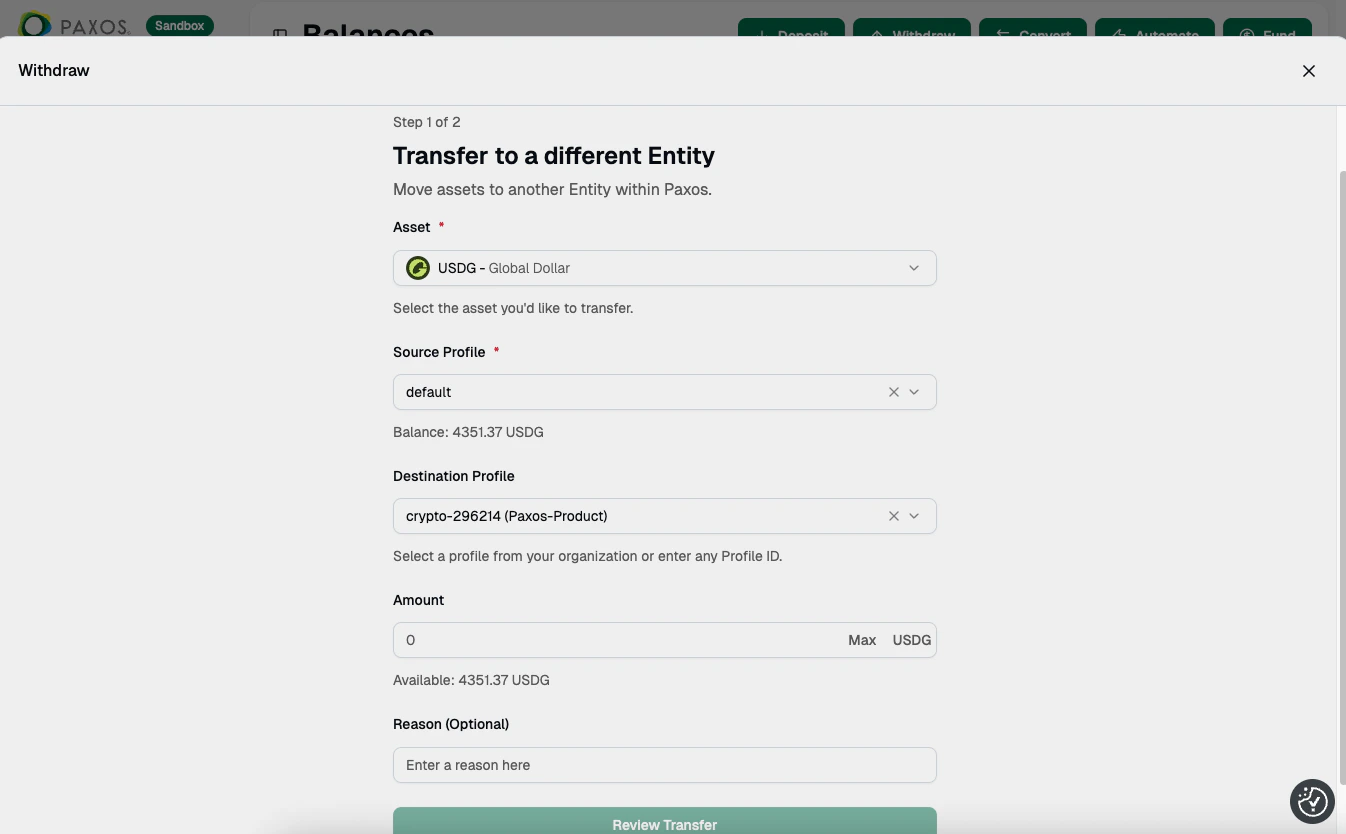 Go to [Transactions > Deposits & Transfers](https://dashboard.paxos.com/dashboard/transactions/deposits-transfers) to monitor activity.
> When contacting [Support](https://support.paxos.com) about a withdrawal, include the unique **Transfer ID** and **Group ID** in your message to help our agents find the correct transaction.
Go to [Transactions > Deposits & Transfers](https://dashboard.paxos.com/dashboard/transactions/deposits-transfers) to monitor activity.
> When contacting [Support](https://support.paxos.com) about a withdrawal, include the unique **Transfer ID** and **Group ID** in your message to help our agents find the correct transaction.