

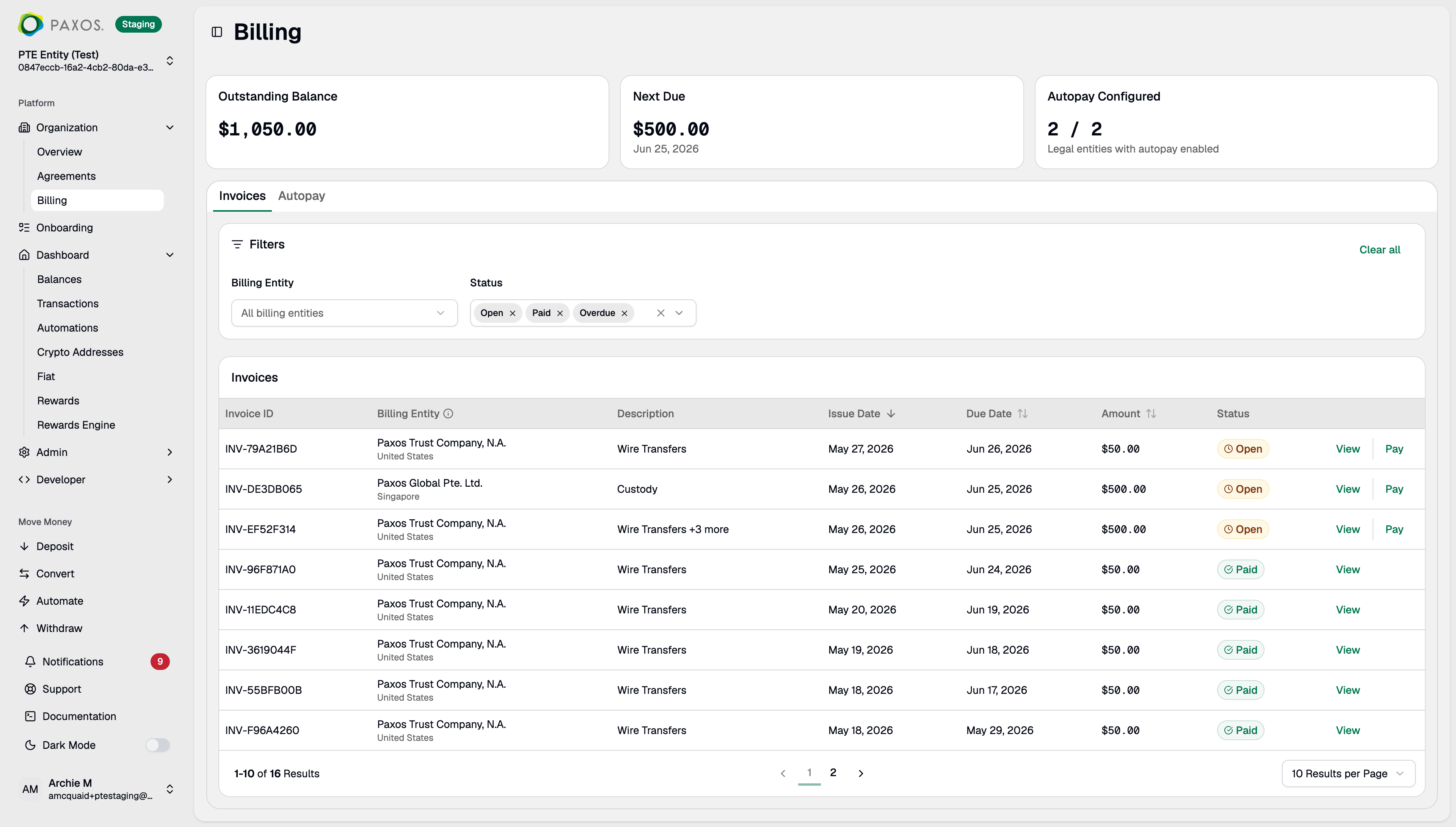
Invoices
The Invoices tab lists all invoices issued to your organization. Invoices are split by billing entity — the Paxos legal entity (e.g., Paxos Trust Company, N.A. or Paxos Global Pte. Ltd.) under which your services are contracted. You receive one invoice per billing entity per billing period. For example, if your organization has services under both Paxos Trust Company, N.A. and Paxos Global Pte. Ltd., you will receive two separate invoices.Invoice Statuses
Invoice Details
Click any invoice to view line items, dates, and totals. Click Download PDF to save a copy.Pay an Invoice
Open an invoice and click Pay This Invoice to start the payment flow. Choose from three payment methods:➊ Platform Balance
Pay instantly using funds already on the Paxos platform. You can pay with a USD, USDG, or PYUSD balance.- Select the Entity to pay from.
- Select a Profile within that entity. The available balance is displayed next to each profile.
- Select the asset to pay with: USD, USDG, or PYUSD.
- Review the payment details and click Confirm.
Paid.
Your profile must have sufficient balance in the selected asset to cover the full invoice amount. Partial payments are not supported.
➋ Wire Transfer
Pay by sending a bank wire to Paxos.- Select Wire Transfer as the payment method.
- Copy the wire instructions displayed, including the bank name, account name, routing number, SWIFT/BIC code, account number, and memo.
- Initiate the wire from your bank using these details.
Open until the wire is received and matched. No action is needed in the Dashboard after initiating the wire.
➌ Stablecoin
Pay using USDG or PYUSD on a supported blockchain network.- Select Stablecoin as the payment method.
- Choose the Asset and Network.
- Send the exact invoice amount to the deposit address shown. A QR code is provided for convenience.
Open until the on-chain transfer is confirmed and matched.
Payment Matching
Wire and stablecoin payments are matched against open invoices using exact subset matching, prioritising older invoices first. The payment amount must exactly equal the sum of one or more open invoices. Partial payments are not supported.- Payment must match the exact total of one or more open invoices — no partial payments.
- Older invoices are prioritised when multiple subsets could match.
- If no match is found, the payment fails.
Autopay
The Autopay tab lets you configure automatic payments so invoices are paid before their due date without manual action. When enabled, Paxos automatically pays invoices from your selected profile’s platform balance three days before the due date.Set Up Autopay
- Go to the Autopay tab and click Set Up Autopay.
- Select the Billing Entity to configure.
- Select the Entity and Profile to pay from.
- Select the asset to pay with: USD, USDG, or PYUSD.
- Review the configuration and confirm.
Manage Autopay
Each billing entity can have its own autopay configuration. From the Autopay tab you can:- Edit — change the profile or asset used for automatic payments.
- Pause — temporarily disable automatic payments. Invoices will not be paid automatically until you resume.
- Resume — re-enable a paused configuration.
If the profile linked to an autopay configuration is removed, the configuration shows an
Invalid status. Edit the configuration to select a new profile.Questions? Contact Support.