

How You’re Notified
When an agreement is waiting on you, the Dashboard surfaces it in one of three ways depending on its deadline.
You are only blocked by an agreement you are able to accept yourself. The banner shows which audience the agreement applies to, for example
On behalf of [Organization name].
My Agreements
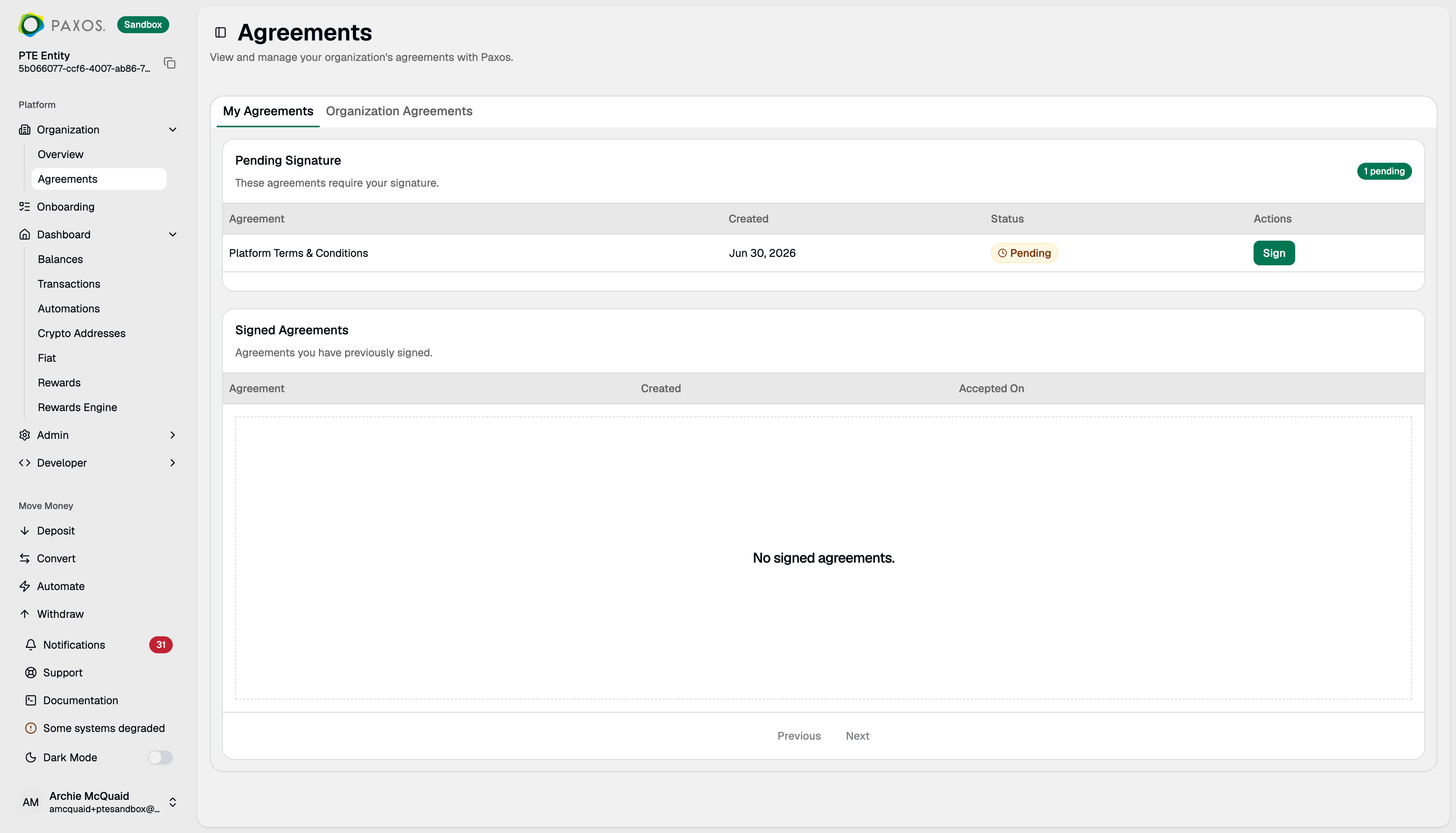
The My Agreements tab lists agreements assigned to you, split into two sections.Pending Signature
Agreements that require your signature. Click Sign to review and accept one.Signed Agreements
Agreements you have already signed, with the date you accepted each one.Organization Agreements
While Signed Agreements lists only the agreements you signed yourself, the Organization Agreements tab shows every agreement your organization has accepted, including who accepted it and when. This tab is only visible to users with the Agreements Read permission.Some agreements only need one person in your organization to accept on its behalf. Once a colleague signs, it stops showing as pending for everyone else and moves to your organization’s accepted history.
Review and Accept an Agreement
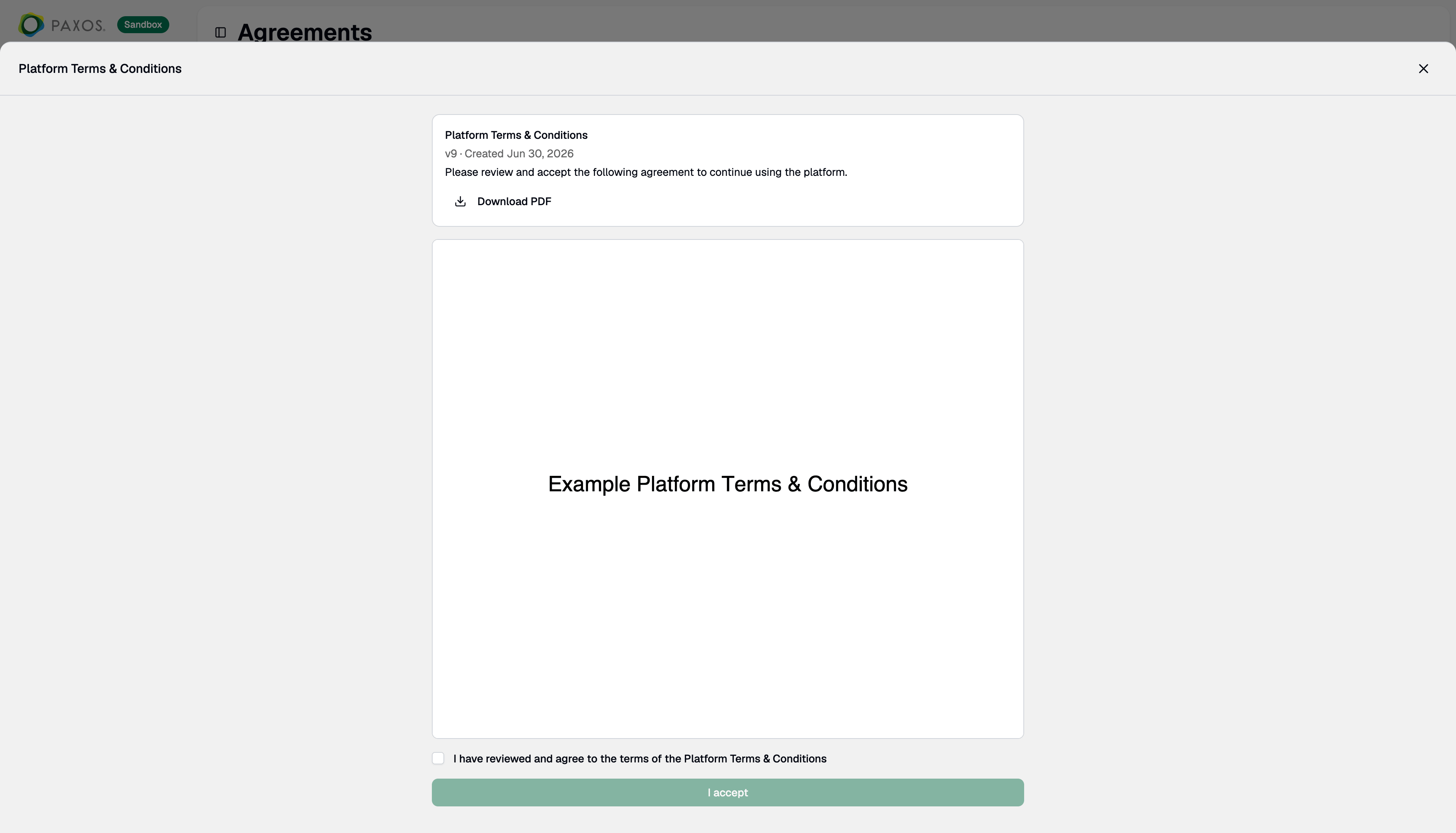
- From Pending Signature, click Sign (or Review & Accept on a banner, or Review Agreement on a prompt).
- The agreement opens inline. You must read the document in full before you can accept — scroll to the bottom to enable acceptance.
- Tick I have reviewed and agree to the terms.
- Click I accept.
Updated Agreements
When Paxos publishes a new version of an agreement, the updated agreement reappears under Pending Signature. Your previous acceptance no longer satisfies it and a new signature is required. Review and accept the new version the same way.Withdrawn Agreements
If Paxos voids an agreement before you sign it, it is removed from Pending Signature and any prompt to sign it disappears — no action is needed. Agreements you already accepted remain in your history for audit purposes.Questions? Contact Support.