

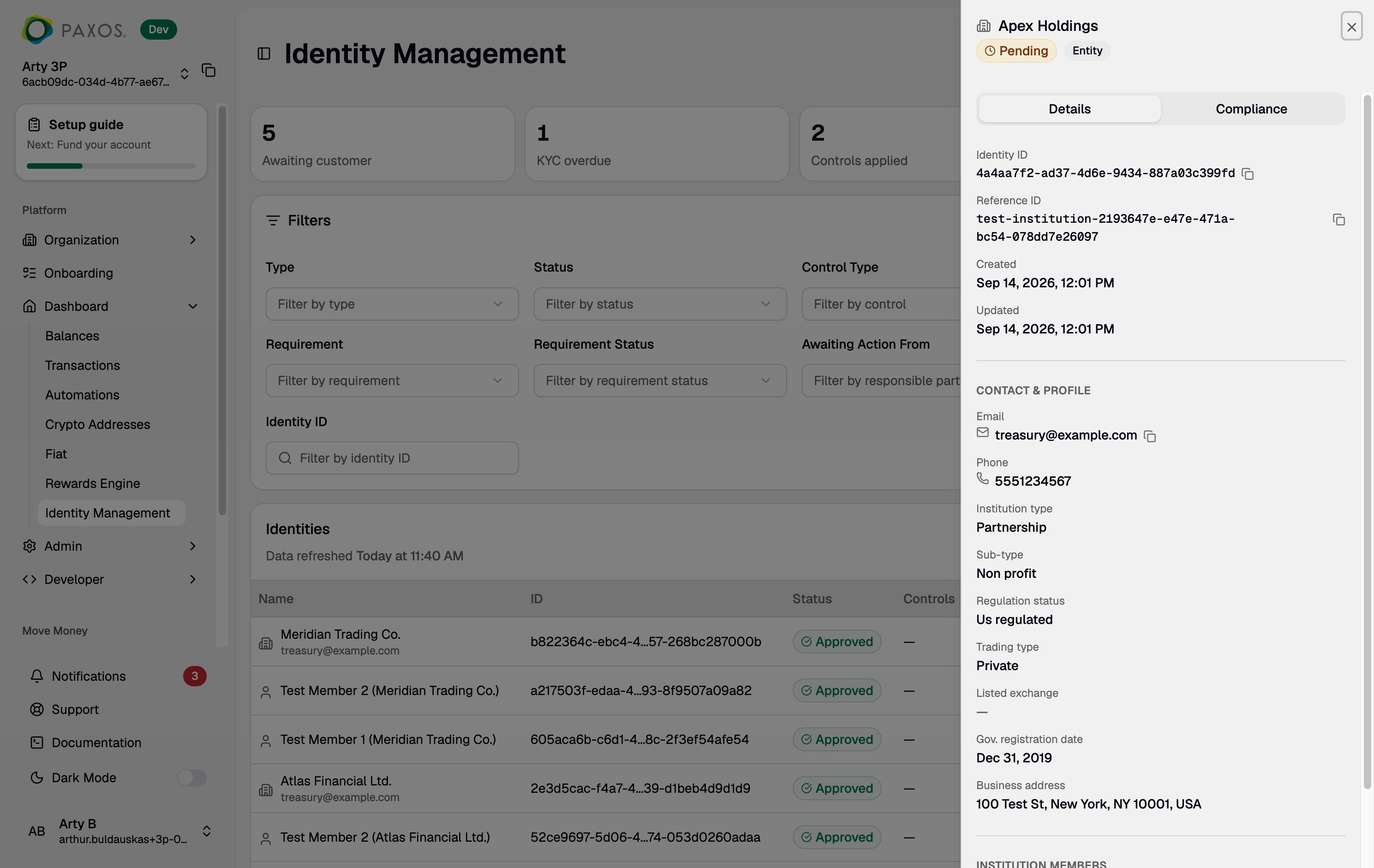
Side Panel Header
The header displays:- Name (or redacted placeholder if you lack the PII scope)
- Identity Type (Person or Institution)
- Status badge (
PENDING,APPROVED,DENIED,DISABLED,ERROR)
Details Tab
The Details tab shows identifying and organizational information:- Identity ID — The full UUID. Click to copy.
- Contact and Profile — Email, phone, address, and other profile fields. These are fully redacted for users without the
identity:read_identity_piiscope. - Metadata — Creation date, last updated date, and other system fields.
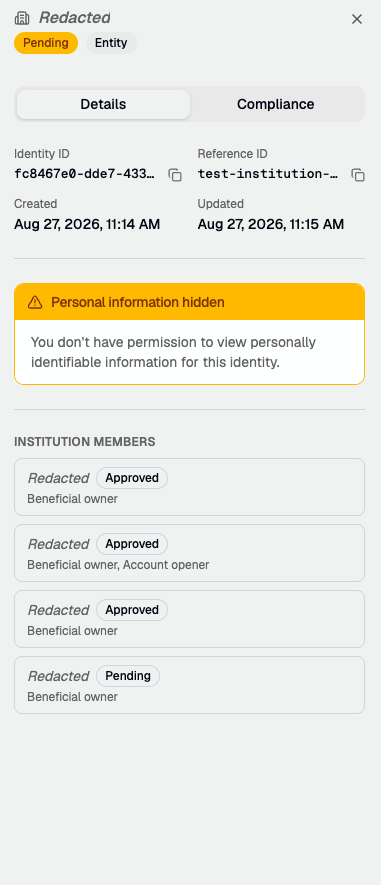
- Institution Members — For institution identities, a list of associated member identities (beneficial owners, control persons, etc.) with their individual statuses. Click a member to navigate to their identity details.
For institution identities, a MEMBERS requirement on the parent identity means one or more members have outstanding issues. Check each member’s status to find the root cause. See The MEMBERS Requirement for details.
Compliance Tab
The Compliance tab shows the identity’s regulatory and compliance state.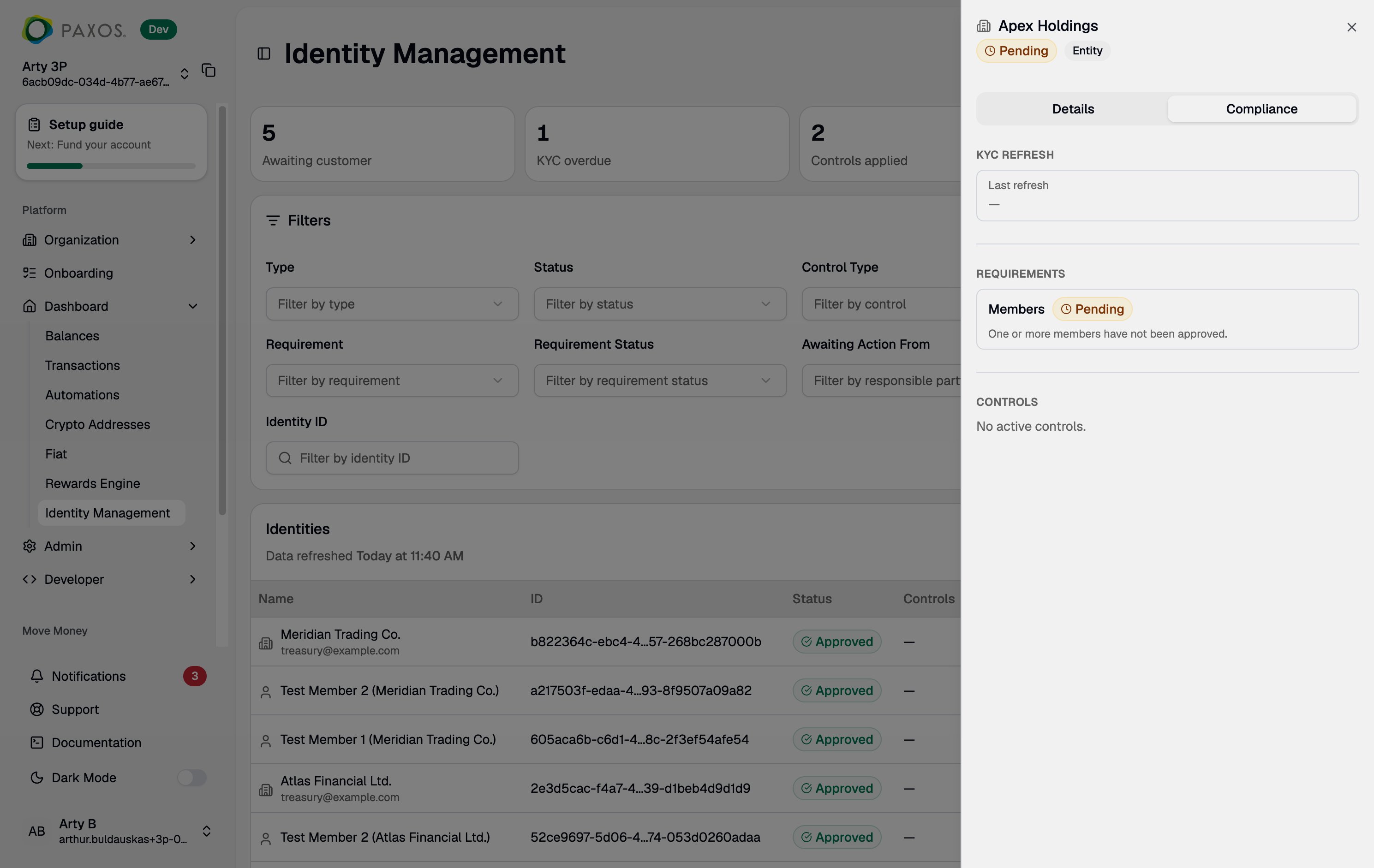
KYC Refresh
Displays the last KYC refresh date, if applicable. Identities with an overdue or expired refresh appear in the KYC Refresh Overdue stat card on the main page.See Periodic KYC Refresh for how KYC refresh works and what action is needed.
Requirements
Lists all outstanding requirements affecting the identity. Each entry shows:- Type — The requirement category (ID verification, screening, KYC refresh, enhanced due diligence, members, etc.).
- Status —
PENDINGorFAILED. - Awaiting Action From — Whether Paxos or your application needs to act. Not present for
MEMBERSrequirements — check the individual member identities instead.
Active Controls
Lists all controls currently applied to the identity, including:- Type (
SELL_ONLY,FROZEN,DORMANT,CLOSED) - Set By — Whether the control was applied by Paxos or by your application.
- Reason — Why the control was applied.
PII Visibility
PII fields — name, email, address, and other personally identifiable information — are displayed based on your role’s permissions. Roles without PII visibility (Viewer, Developer, Entity Manager, Organization Administrator) see these fields fully redacted throughout the page. There is no hover, click, or toggle to reveal them. In the identity table, the Name column shows “Redacted” for every identity: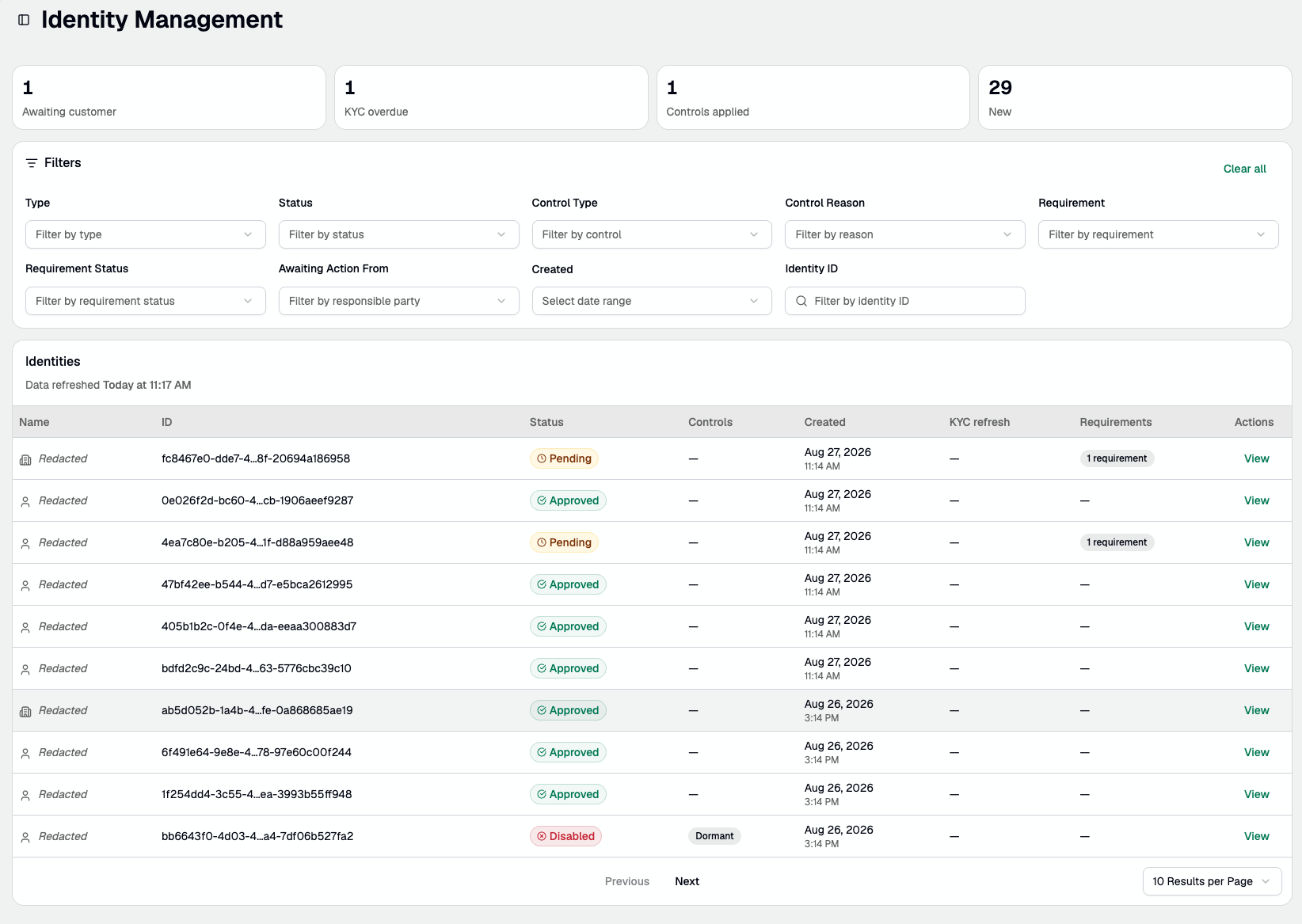
Related Resources
- Identity Lifecycle — Status definitions, requirement types, and control types.
- Identity API Reference — Programmatic access to identity data.
- Identity Controls API — Manage controls via API.
Questions? Contact Support.