

➊ Sign Up
Use the GDN invite link provided by your Paxos contact to create an account.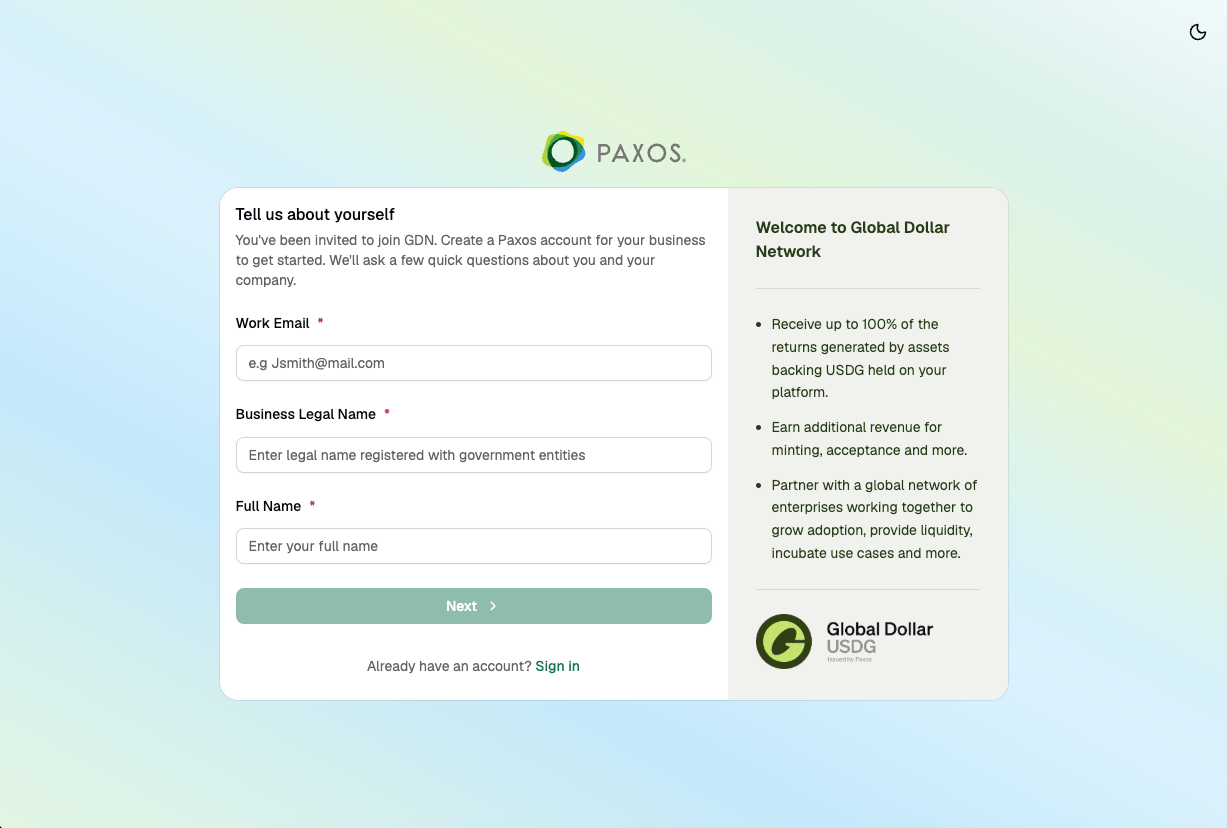
➋ Complete Get Started
After signing in, a Get Started setup flow launches automatically.1
Welcome
Review what the setup covers, then click Continue.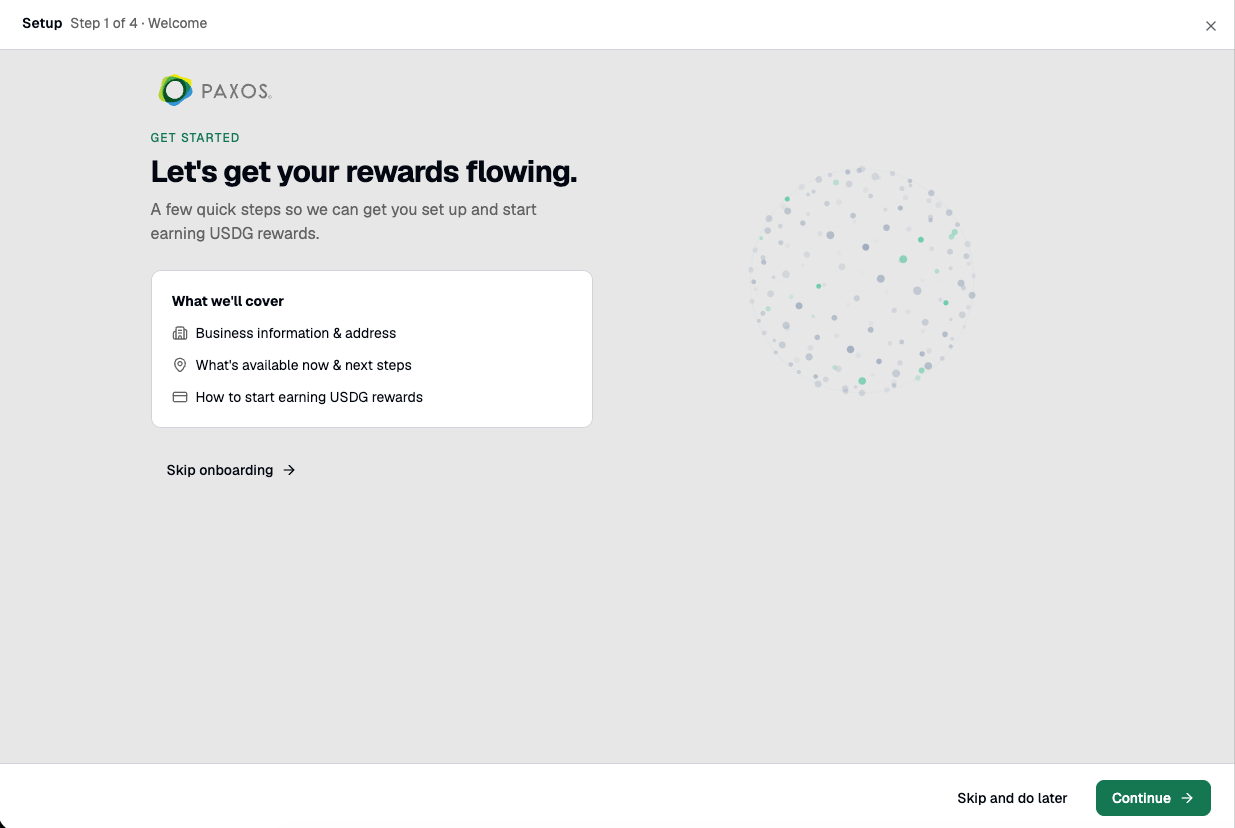
2
Business Info
Enter your Legal business name, Country of incorporation, Company type, and optionally a Company description and Company website. Click Continue.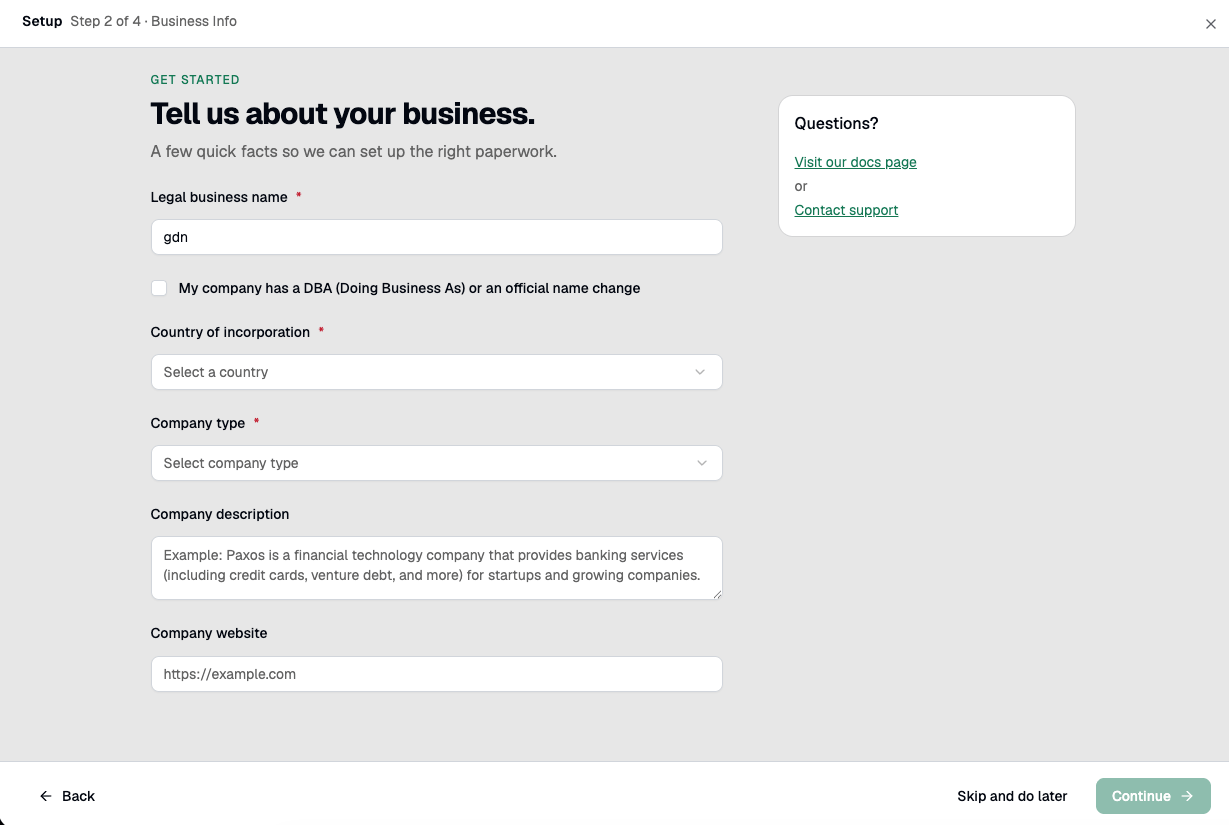
3
Business Address
Enter your business address (PO Boxes are not accepted). Click Submit.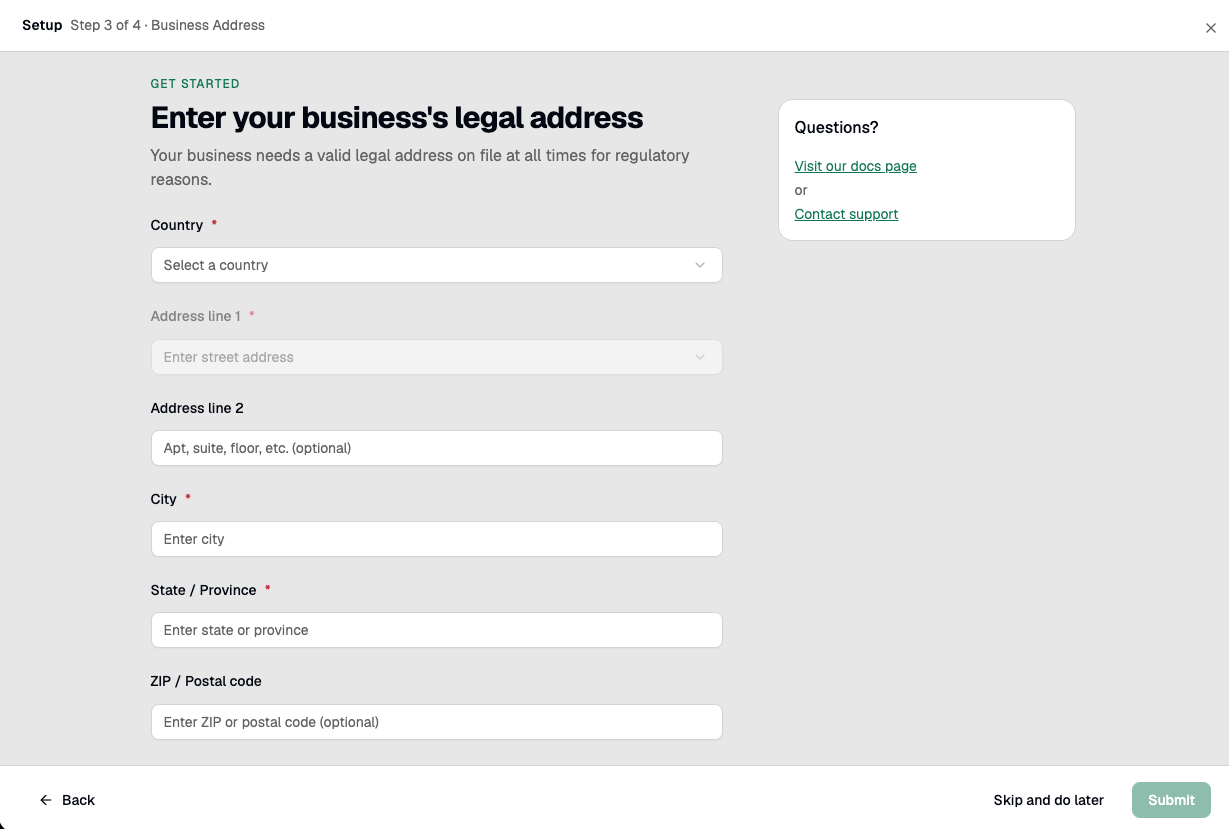
4
Next Steps
Your application is submitted. Paxos will review and email you once complete. Once approved, you’ll need to sign an agreement via DocuSign to activate your account.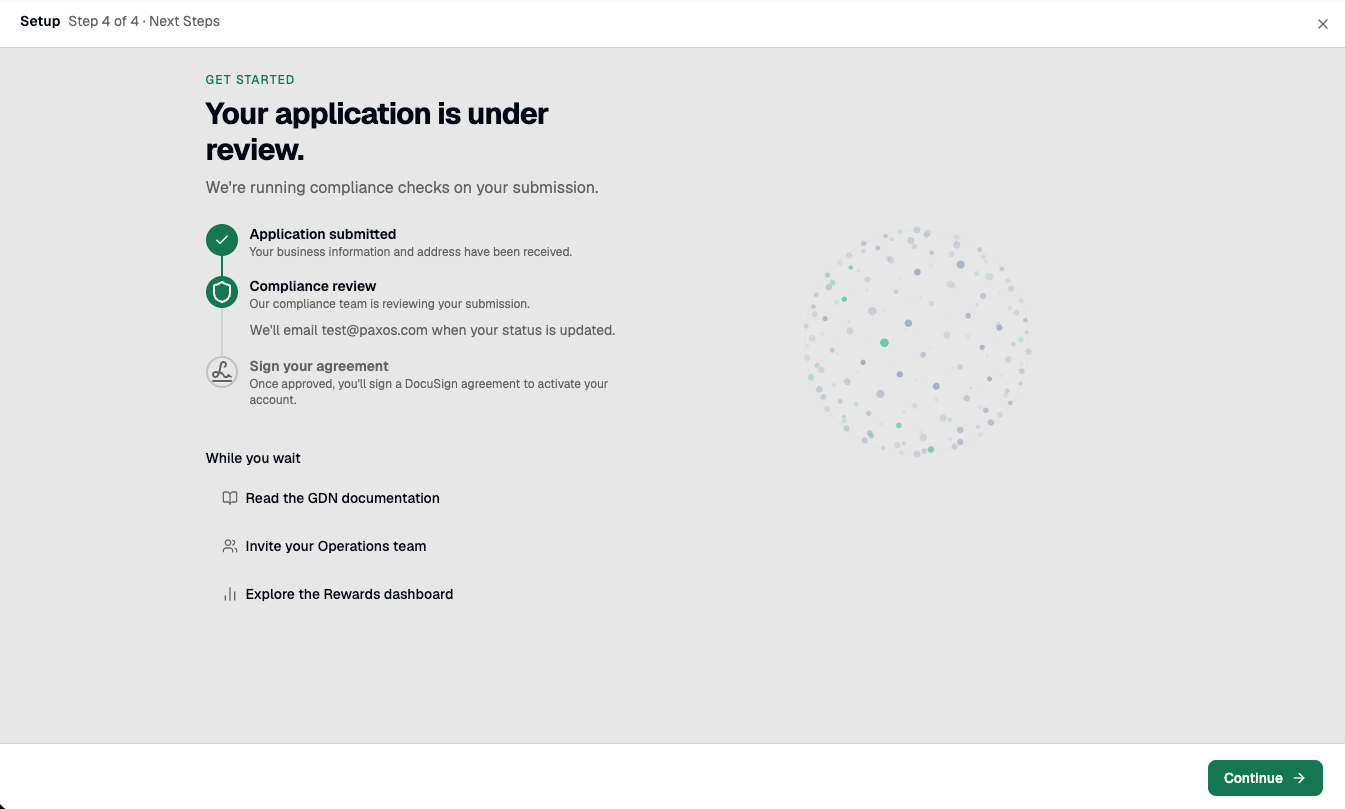
➌ Wait for Paxos to Enable Rewards
Once Paxos enables your account for rewards, your Onboarding page updates to confirm your approved status. The page shows Your account is approved for rewards and a Set up rewards task with a Go to Rewards button. To unlock the full platform — including moving money, API keys, and full custody — complete business verification by clicking Verify your business.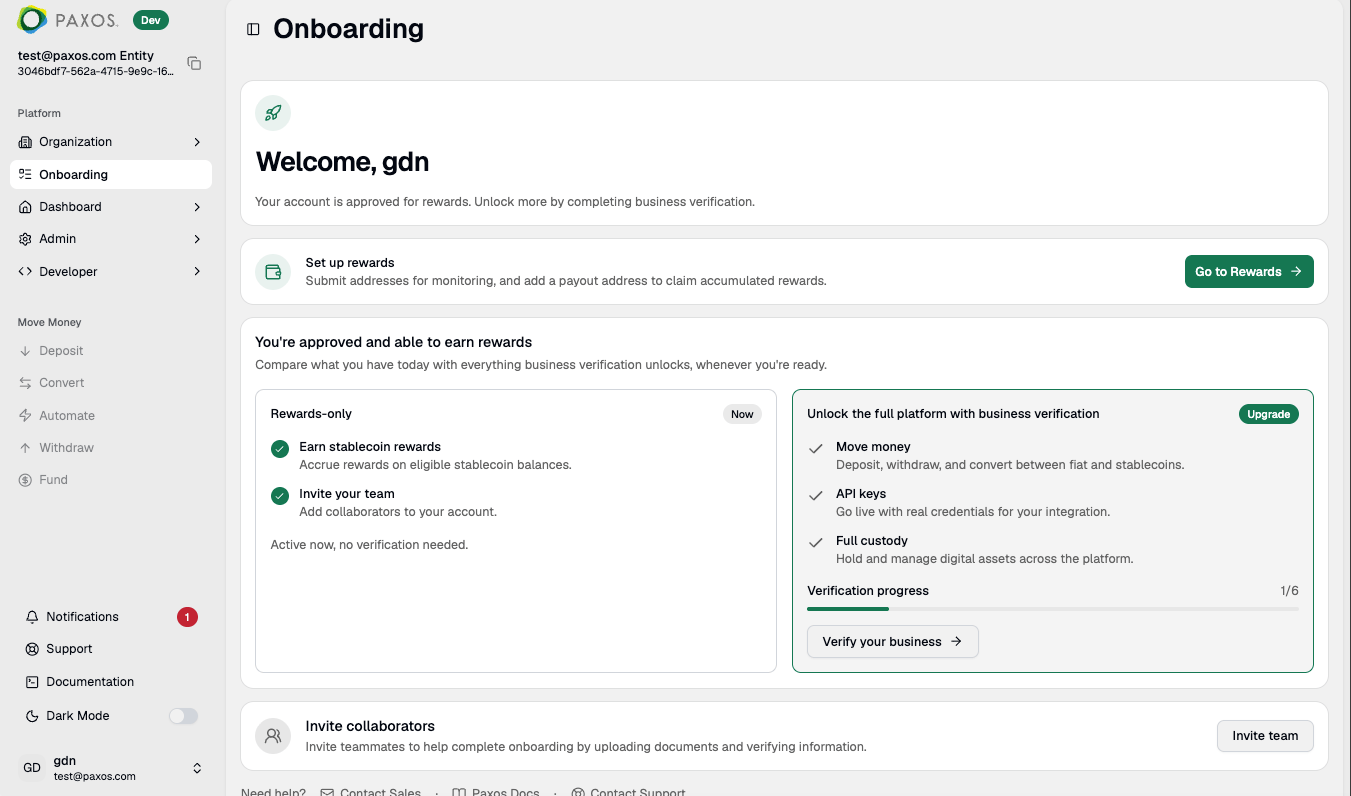
➍ Set Up Rewards
Once Paxos enables your account for rewards, navigate to Rewards in the left sidebar to configure your payout address and monitoring addresses.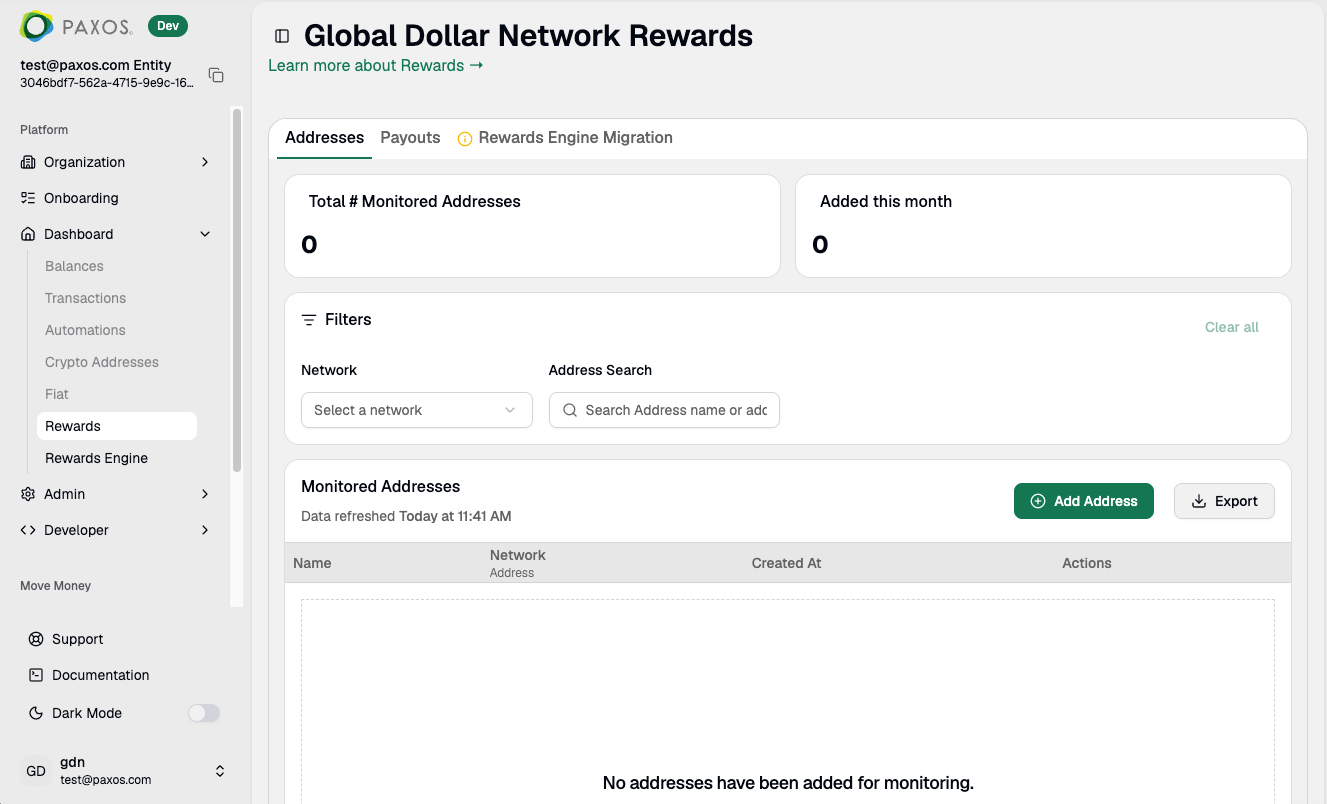
Questions? Contact Support or refer to the Rewards Engine overview.