To add or modify API Credentials, you’ll need a Developer or other role with appropriate permissions. Contact your Entity Manager for help.
Add API Credentials
- Log in to your Dashboard account and go to Developer > API (API Management).
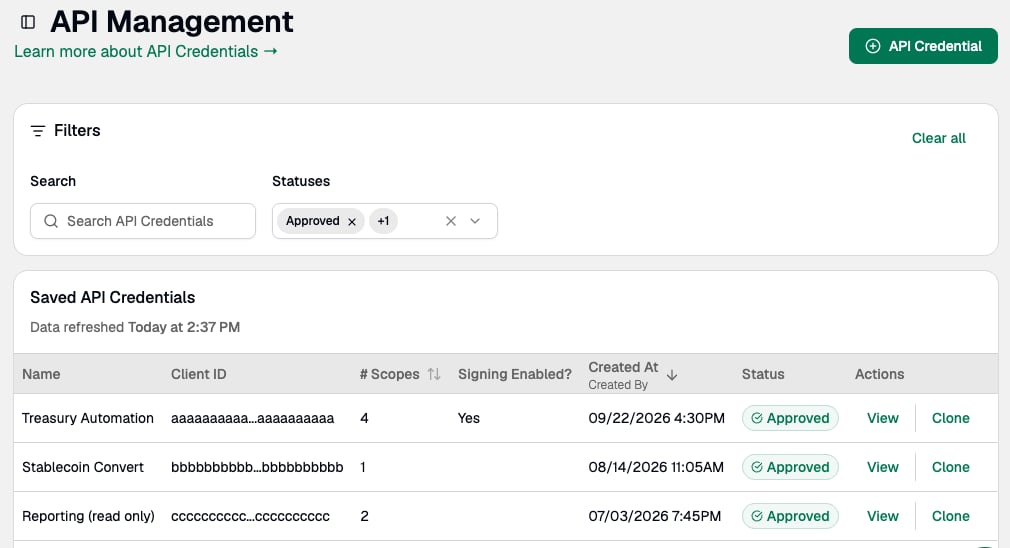
- Click API Credential.
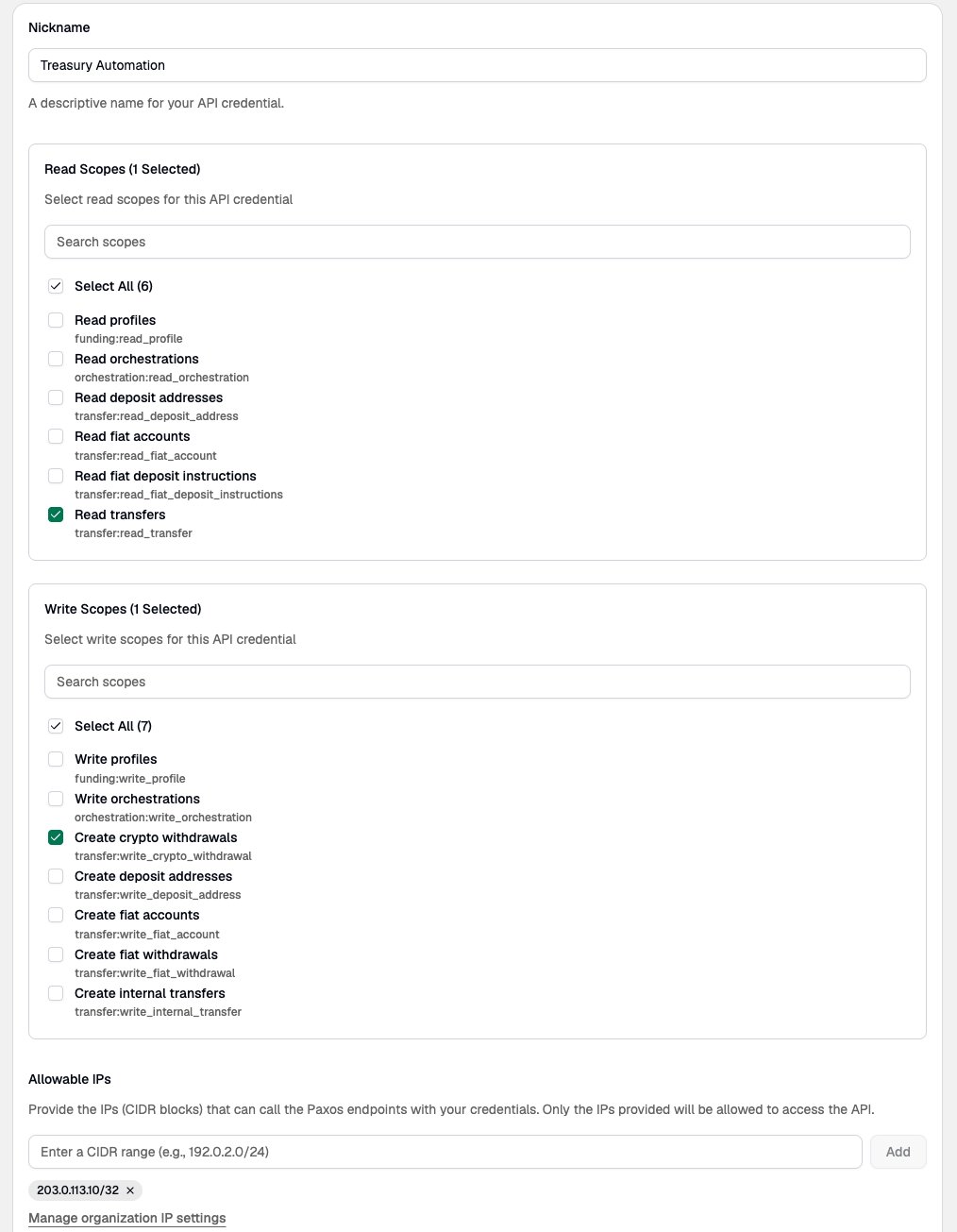
- Enter a Nickname for your API credentials.
- Select the Scopes for your Client ID. For example, the following scopes (space delimited) should be adequate to convert Paxos-issued stablecoins:
- Optional: Add Allowable IPs. If you have a single IP address, you can configure a CIDR entry to specify a single IP with 32 fixed bits by appending
/32to the address. For example, using000.000.0.000/32will allow only the IP address000.000.0.000.
Organization Administrators can also configure an organization-wide IP restriction that applies to all credentials. See Organization Settings.
- Optional: Enable Request Signing.
- Optional: Adjust Advanced Settings (Token Endpoint Auth Method, Grant Types, Redirect URIs). Leave these at their defaults unless a specific integration requires otherwise — see Advanced Settings.
- Click Save API Credential. If your organization has an approval policy for API credentials, the button reads Submit for Approval and the credentials are not active until an approver approves the request.
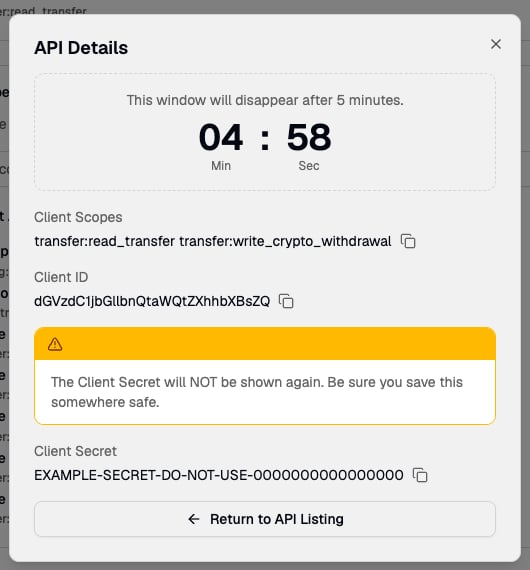
- Copy the Client ID and Client Secret and store them in a safe place. The secret will not be displayed in the UI again, and it will have to be reset if forgotten.