

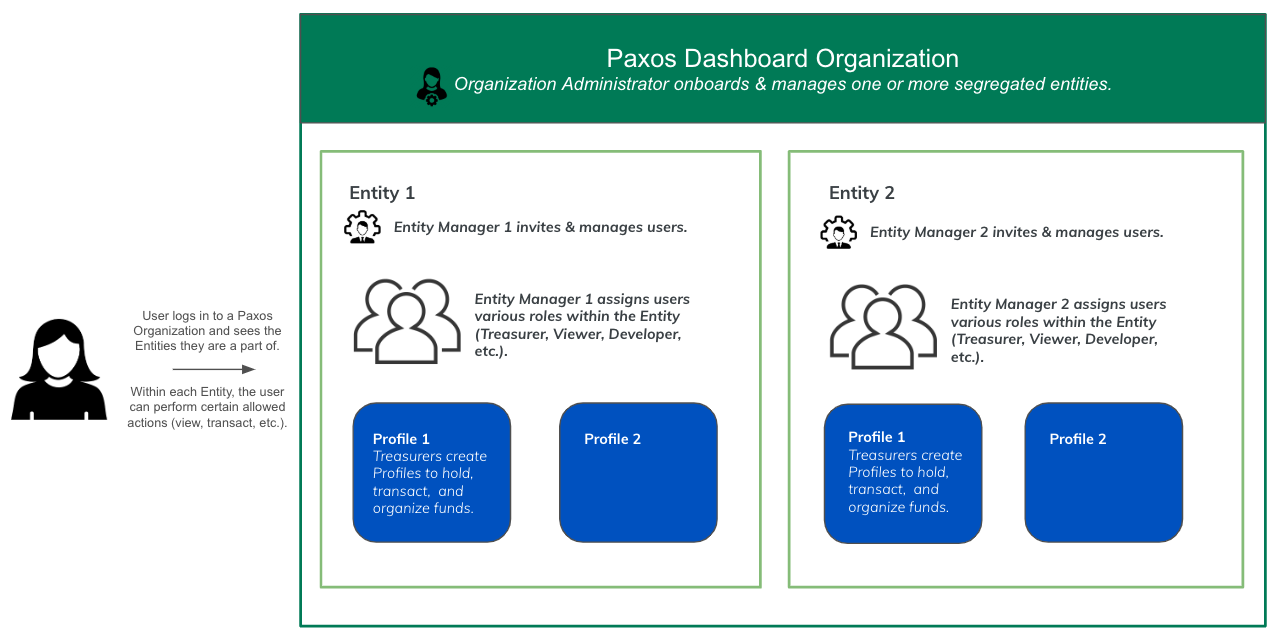
- Org-Level Roles — Defined by an Organization Administrator and available across all entities within the Organization.
- Entity-Level Roles — Defined within a specific entity and not available in other entities. Users can have different roles in different entities.
Organization Administrator
All Organizations have at least one Organization Administrator with permission to onboard Entities. Organization Administrators who complete the onboarding for an Entity automatically become the Entity Manager for that Entity.Entity Manager
Entity Managers assign roles, add users, map identity provider groups to roles, etc. Entity Managers can review Entity specific settings. Entity Managers can be reassigned once an Entity has been created.Use the Entity ID on the Admin > Entity Settings when contacting Support.
Treasurer
The Treasurer role enables users to:- Create Profiles and update balances.
- Deposit, transfer and withdraw supported assets.
- Mint, convert and redeem Paxos-issued stablecoins.
- View reports.
Approver
The Approver can approve or reject any submitted action that requires Approvals.Developer
The Developer can view, create, update and delete API credentials.Viewer
A Viewer has read-only access to view user roles and permissions, cash and crypto balances, deposit and transfer details, API keys, reports as well as conversion information.Operations
Has read-only access across dashboard features with additional permissions for onboarding.Custom Roles
Custom roles enable organizations to define granular access control for users by specifying a tailored set of permissions and actions beyond the above predefined role templates.Some permissions will be flagged as
Requires KYC. Permissions that enable the movement of funds (either on/off platform or between entities) require users to be KYC verified before being able to use them.Org-Level Custom Roles
Organization Administrators can create custom roles that are available across all entities in the Organization. Once created, the role can be assigned to users within any individual entity in the Organization.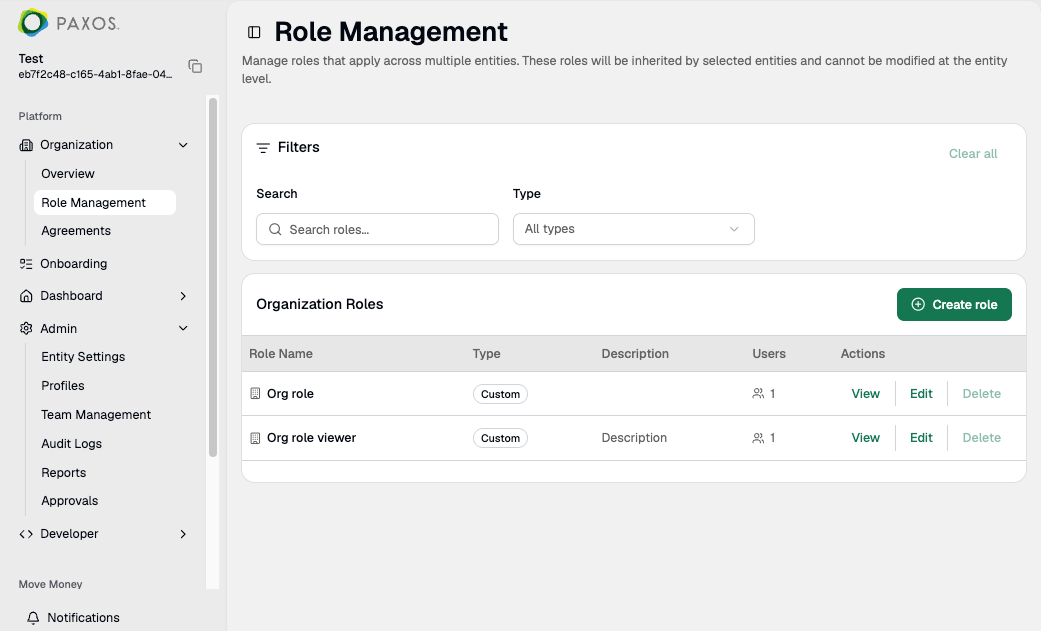
- Go to Organization > Role Management.
- Click Create role.
- Enter a unique name and an optional description. Click Next.
- Choose permissions for this role. Click Next.
- Review and confirm the role. Click Save.
Entity-Level Custom Roles
Users with the Can create custom role permission can create custom roles scoped to their specific entity. These roles are not available in other entities within the Organization.Any org-level roles created by an Organization Administrator are automatically visible here. Select Manage organization roles to view or edit them at Organization > Role Management.
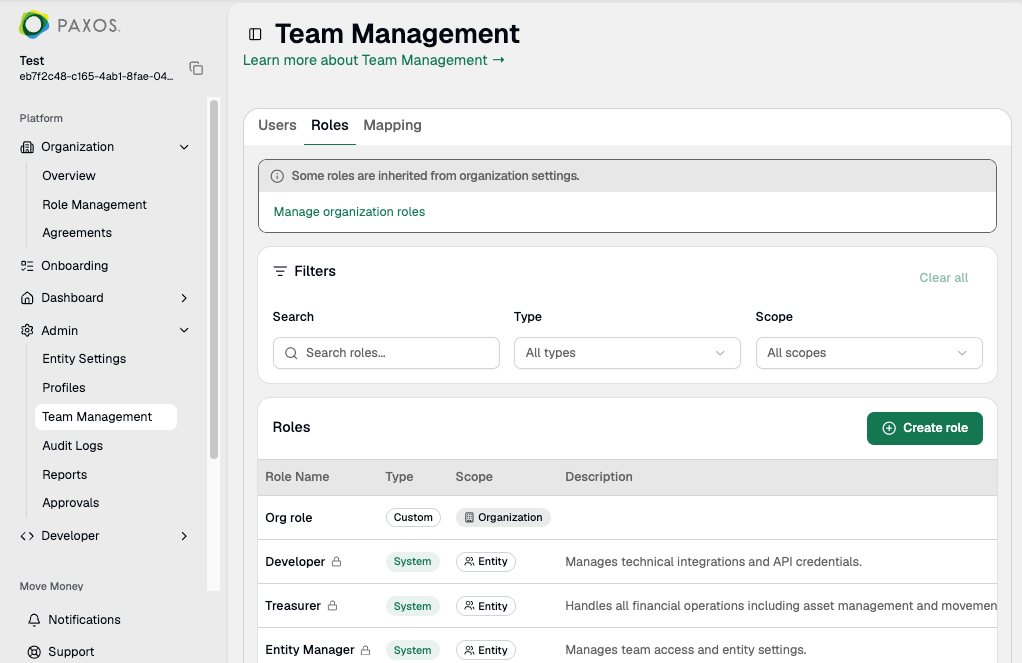
- Go to Admin > Team Management > Roles.
- Click Create role.
- Enter a unique name and an optional description. Click Next.
-
Choose permissions for this role. Click Next.
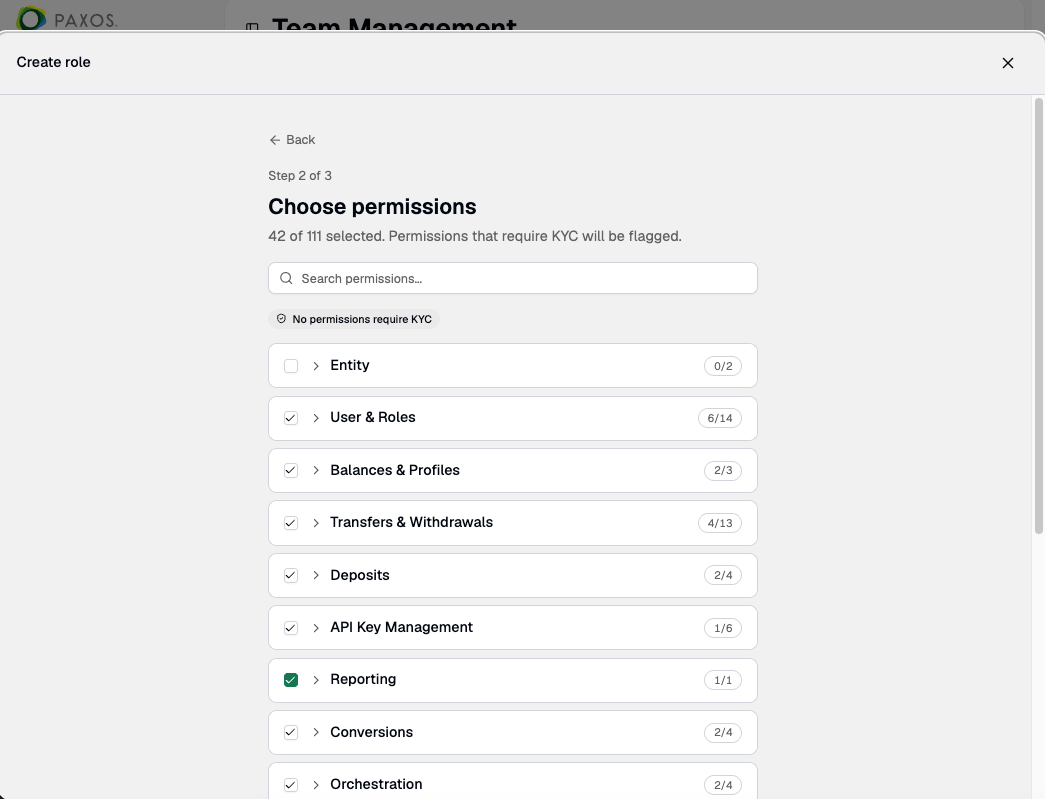
- Review and confirm the role. Click Save.