

The Notifications Drawer
Click Notifications in the sidebar to open the Notifications drawer. The sidebar item displays a badge with the number of unread items, so you can see at a glance when something needs your attention. Once open, the drawer displays:- A running count next to the title, showing how many items still need your attention. The count is capped at 50 and will show
50+for any additional notifications so it stays readable. - Your notifications list, sorted by most recent. Each item shows a title, a short description, and how long ago it arrived (for example,
2 hours ago). - Unread notifications are visually highlighted so they are easy to spot at a glance.
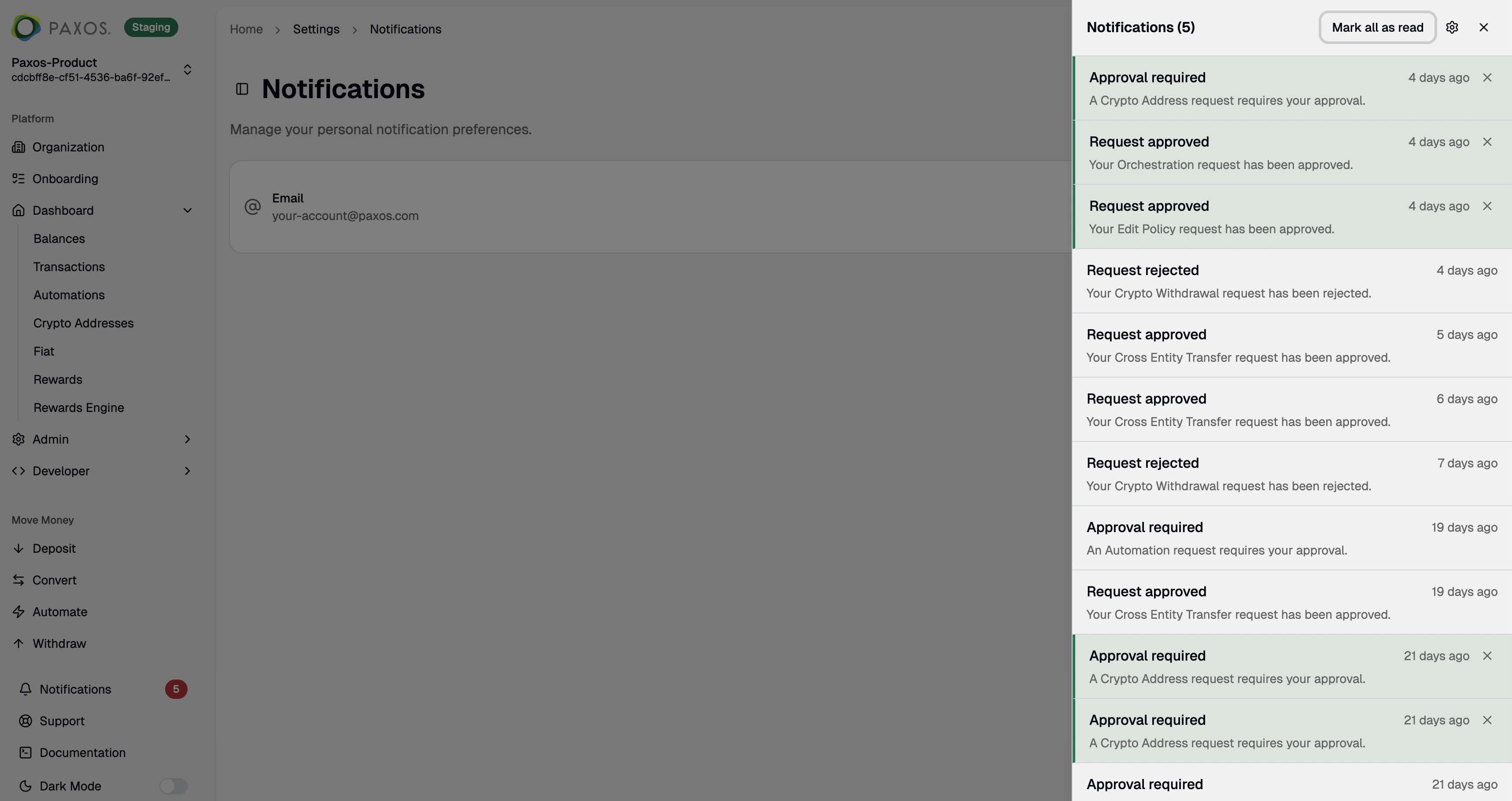
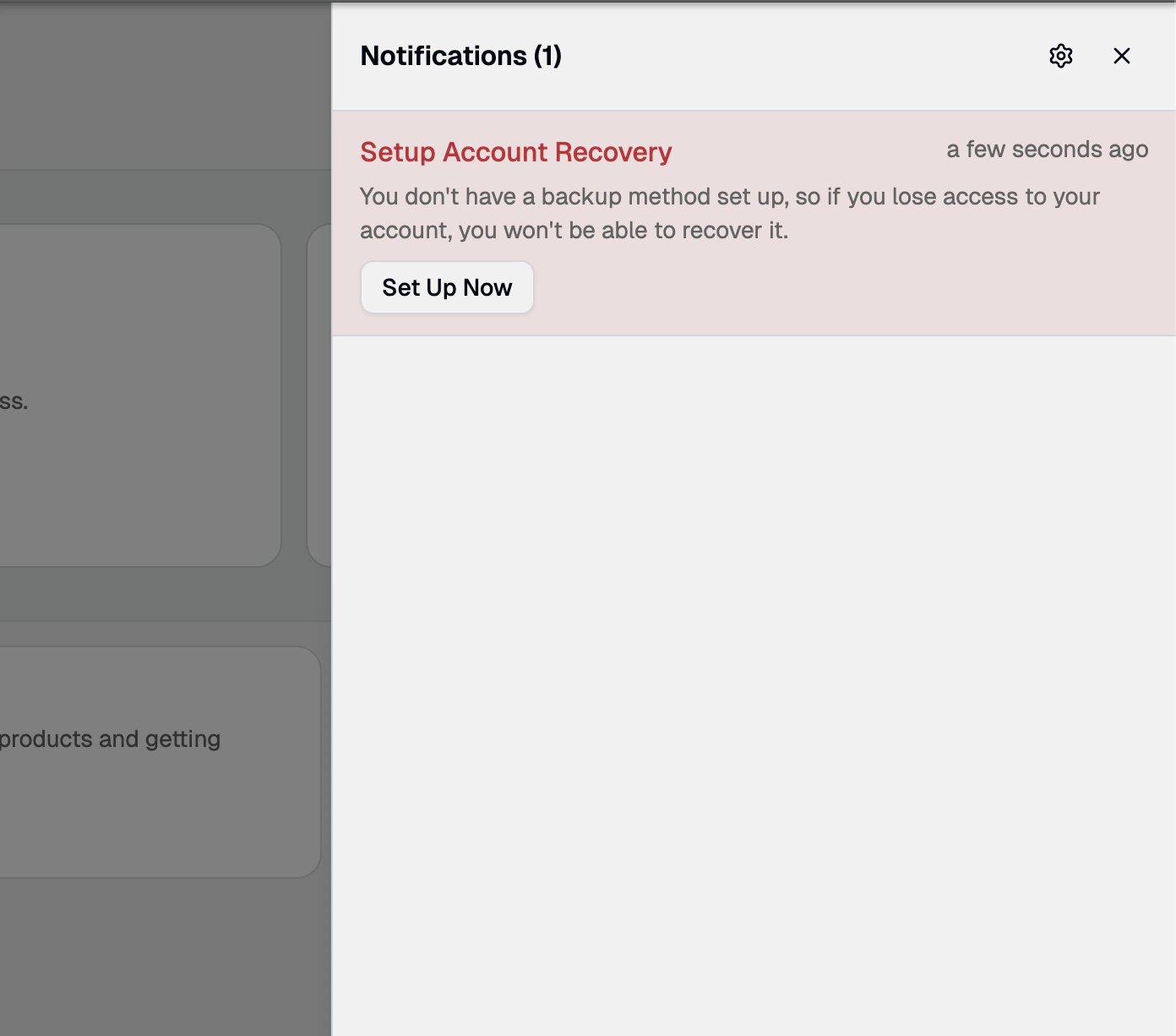
- Urgent and warning notifications are color-coded so critical items stand out from routine ones.
Interact with Notifications
Each notification is designed to get you where you need to go with a single click:- Open a notification: Click anywhere on the notification to jump straight to the relevant page — a pending approval or another action. The notification is automatically marked as read.
- Dismiss a notification: Click the ✕ icon to dismiss a notification and remove it from the drawer.
- Mark all as read: When you have unread items, use Mark all as read in the drawer header to clear the unread count in one click.
Real-Time Updates
You do not need to refresh the page to see new activity:- New notifications appear in the drawer the moment they are created.
- A brief toast message pops up so you are aware even when the drawer is closed. The toast includes a Review button to jump directly to the action.
- If a notification is no longer relevant — for example, someone else already approved a request — it updates automatically so you are not left clicking on stale items.
Account Recovery Prompt
If you have not set up a backup recovery method, a prominent red notification stays pinned at the top of your drawer reminding you to Set Up Now.Quick Access to Settings
A gear icon in the drawer header takes you straight to your Notification Settings, so you can adjust how you are notified without hunting through menus.Notification Settings
The Notification Settings page (Settings → Notifications) lets you control how Paxos reaches you outside the app.Email Notifications
The Email Notifications section displays the email address associated with your account and lets you control whether Paxos sends notifications to your inbox.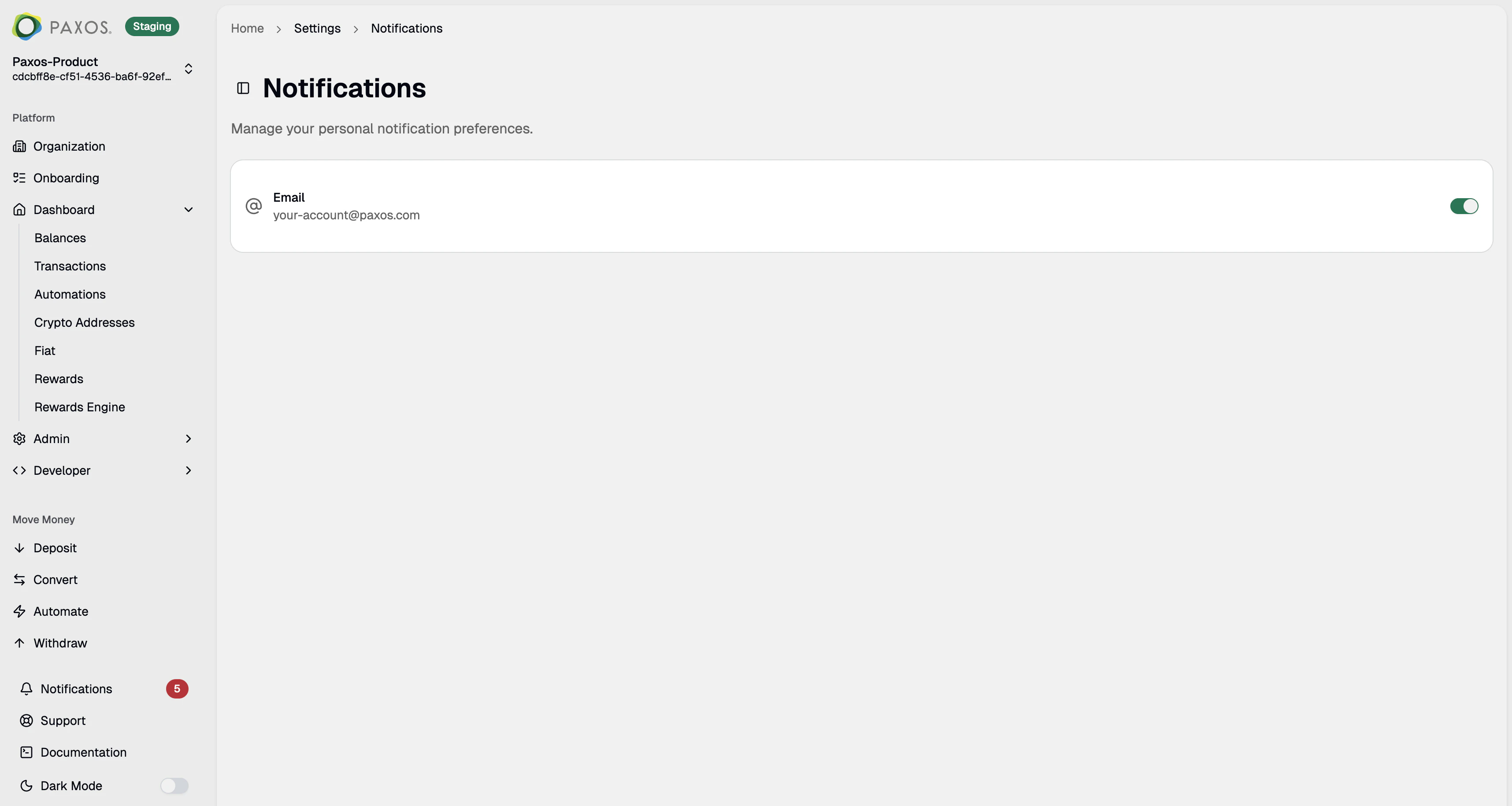
- Go to Settings → Notifications.
- Use the toggle to turn email notifications on or off.
Disabling email notifications does not hide in-app notifications — you will still see them in the drawer. This setting only controls whether Paxos also sends them to your inbox.
Questions? Contact Support.