

- A passkey, saved in a password manager such as iCloud Keychain, Google Password Manager or 1Password
- A hardware security key, such as a YubiKey
Your Authorization Key is separate from the passkey you use to sign in to the Dashboard, even if both are in the same password manager.
Before you start
Creating a key takes a few minutes, but Paxos must verify it before you can sign. Set up your key early so you are not blocked when your organization starts requiring it. If you need a key, the Dashboard reminds you. Click Set Up Key to go to the Security page.
Create your key
➊ Open the Security page
Click the account menu in the bottom-left corner of the Dashboard, then select Settings > Security.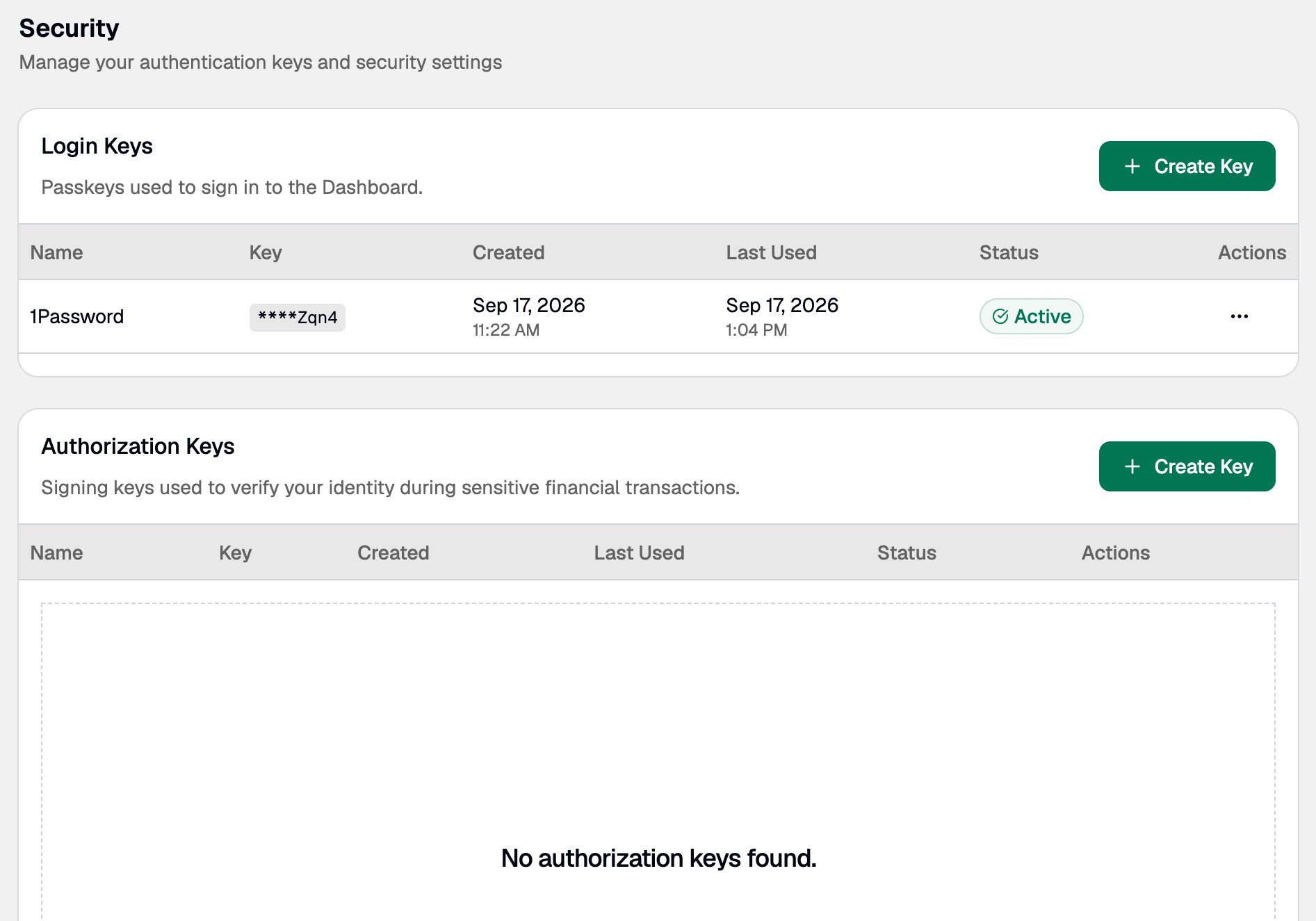
➋ Name your key
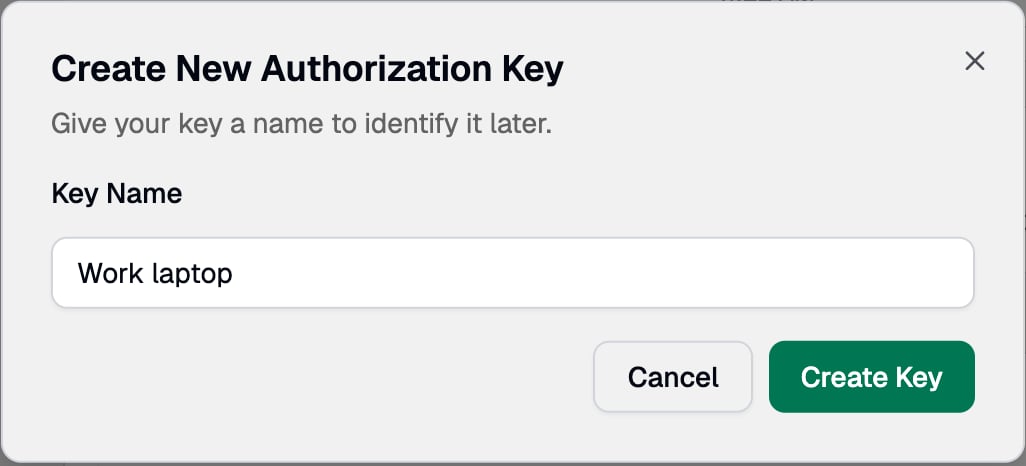
In the Authorization Keys section, click Create Key, enter a name you will recognize, such asWork laptop or 1Password, then click Create Key.
➌ Register the key
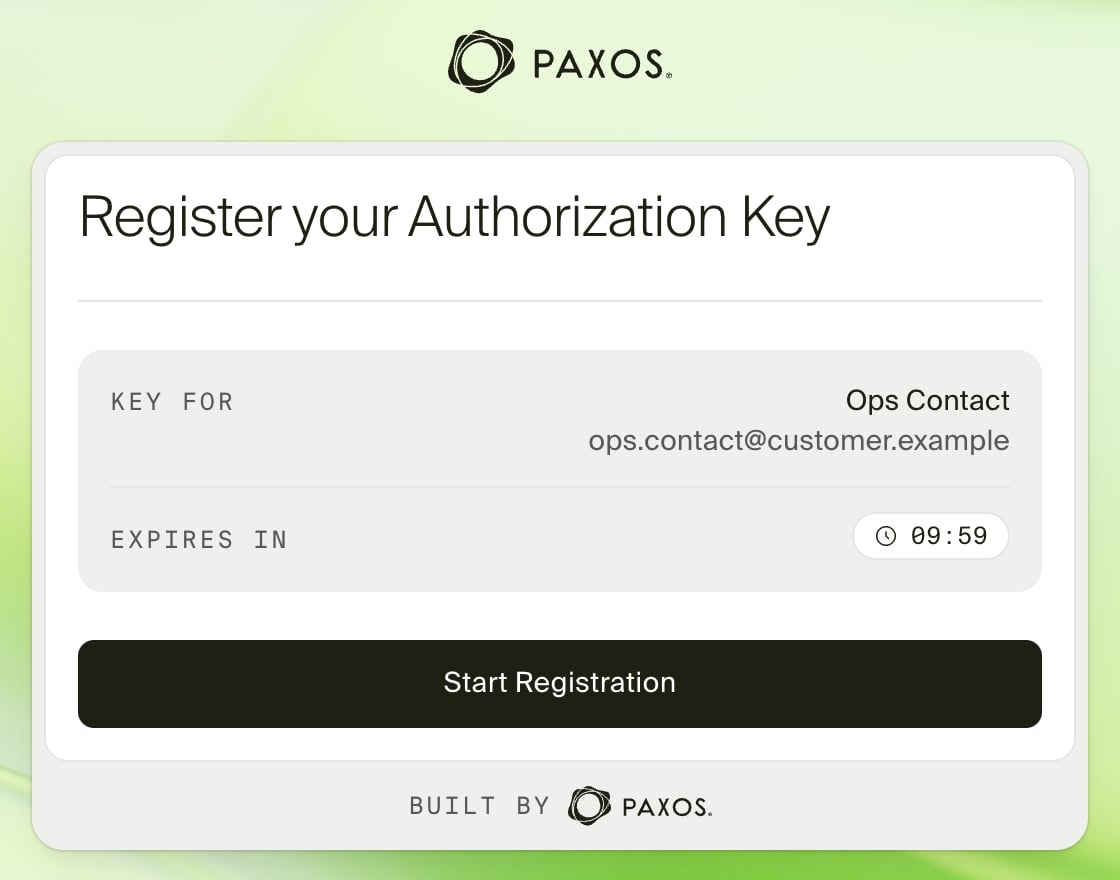
A Paxos window opens onauthorize.paxos.com (authorize.sandbox.paxos.com in Sandbox). Check that the name and email shown are yours, then click Start Registration.
- Passkey
- Hardware security key
Save the passkey to a password manager that syncs across your devices, such as 1Password, iCloud Keychain or Google Password Manager in Chrome. If you replace or lose a device, your key is still available on your other devices.
➍ Save your verification code
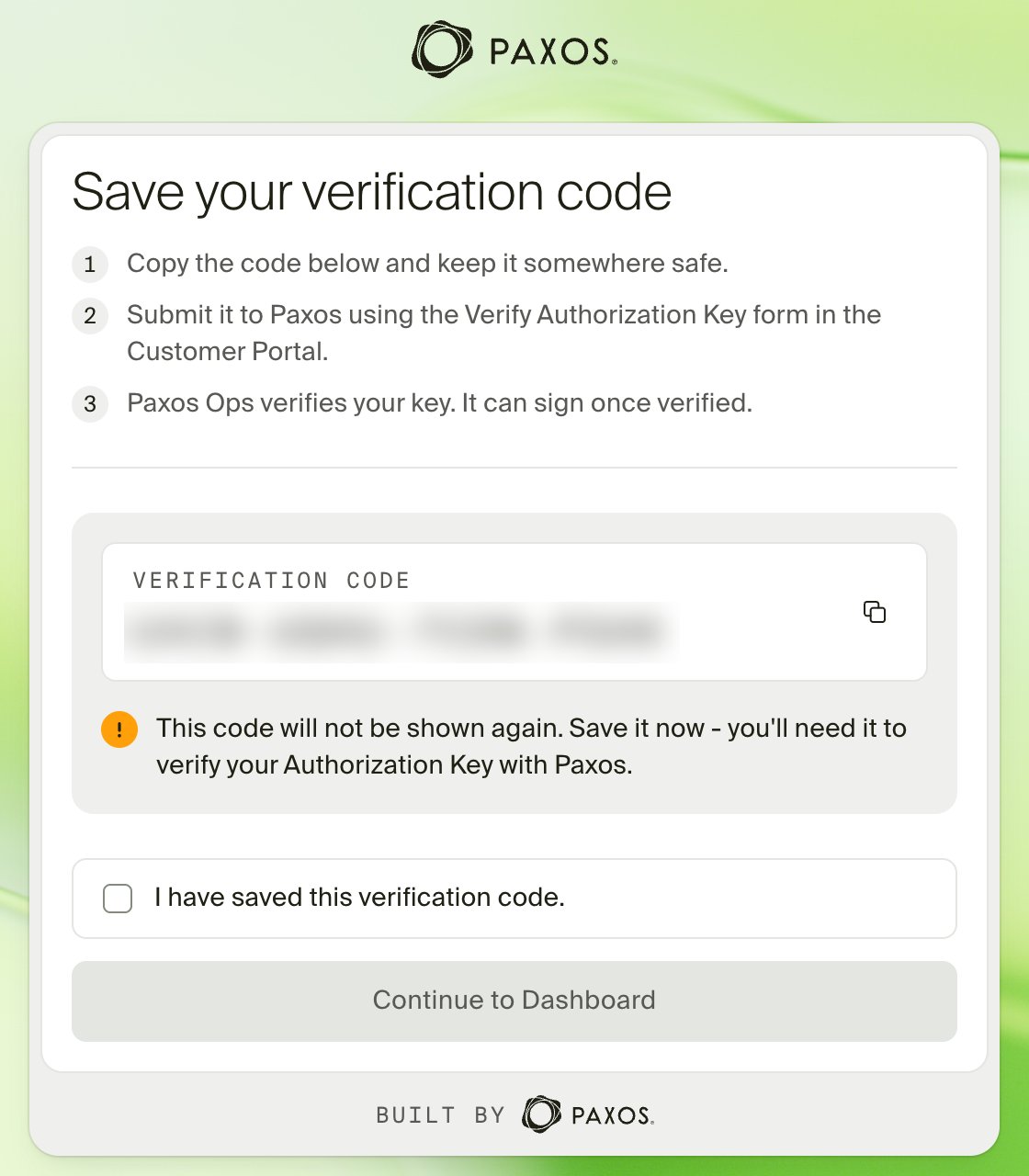
When registration finishes, the window shows a 16-character verification code in the formatXXXX-XXXX-XXXX-XXXX. Copy it and save it somewhere safe, such as a secure note in your password manager.
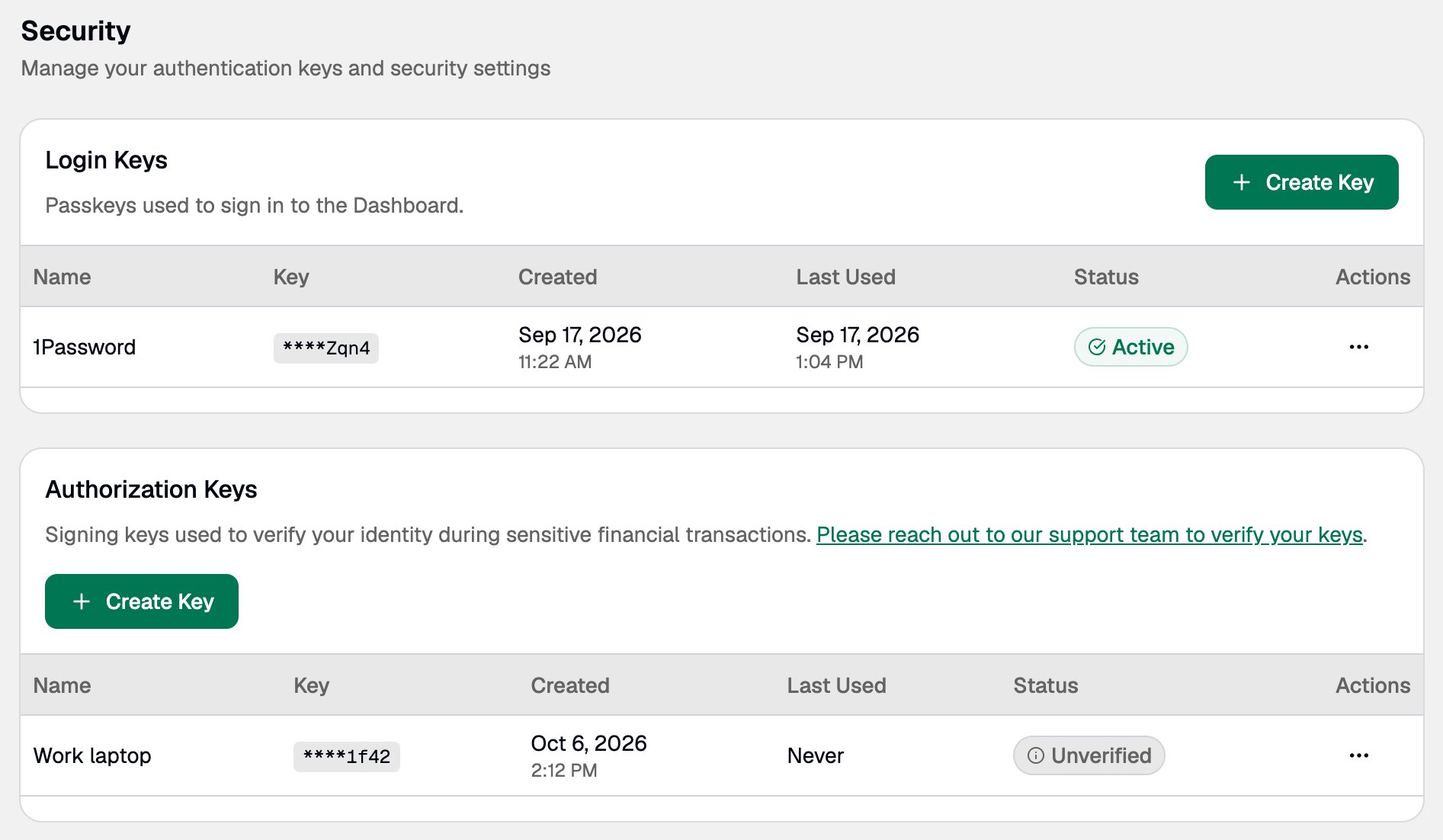
Verify your key
➊ Send Paxos your verification code
Complete the Verify Authorization Key form in the Customer Portal with your verification code and key name. You can also open the form from Request Verification on the Dashboard banner or the link on the Security page.
➋ Wait for Paxos to confirm
Once Paxos verifies your key, its status changes to Verified and the banner disappears. You can now sign actions.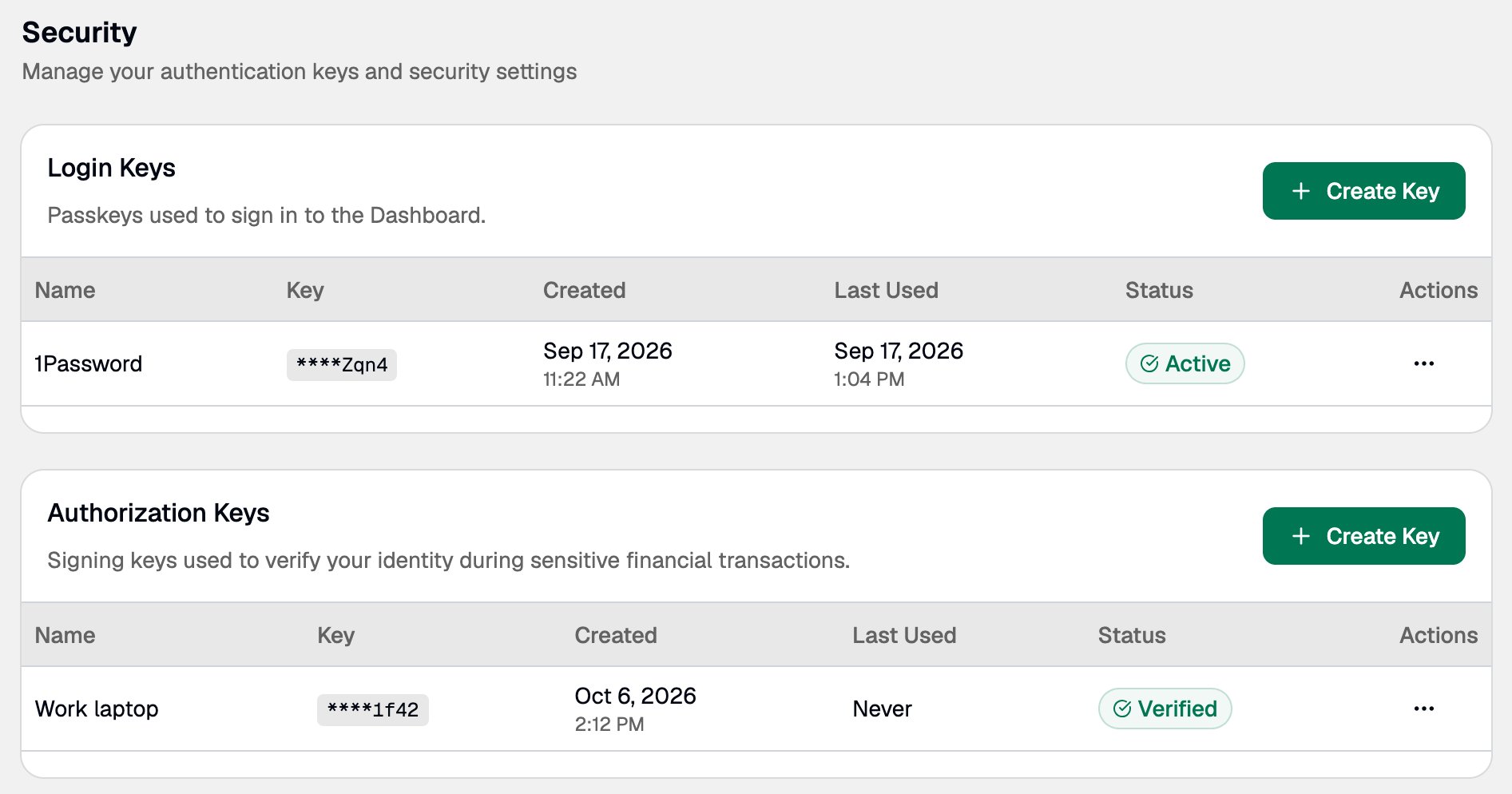
Key statuses
If you lose your key
If you lose your only security key, or your passkey is no longer on any of your devices, the key cannot be recovered. To sign again: You cannot sign until Paxos verifies the new key, so start straight away.Losing your Authorization Key does not affect how you sign in. If you have also lost your sign-in passkey, see Lost Access to Your Passkey.
Revoke a key
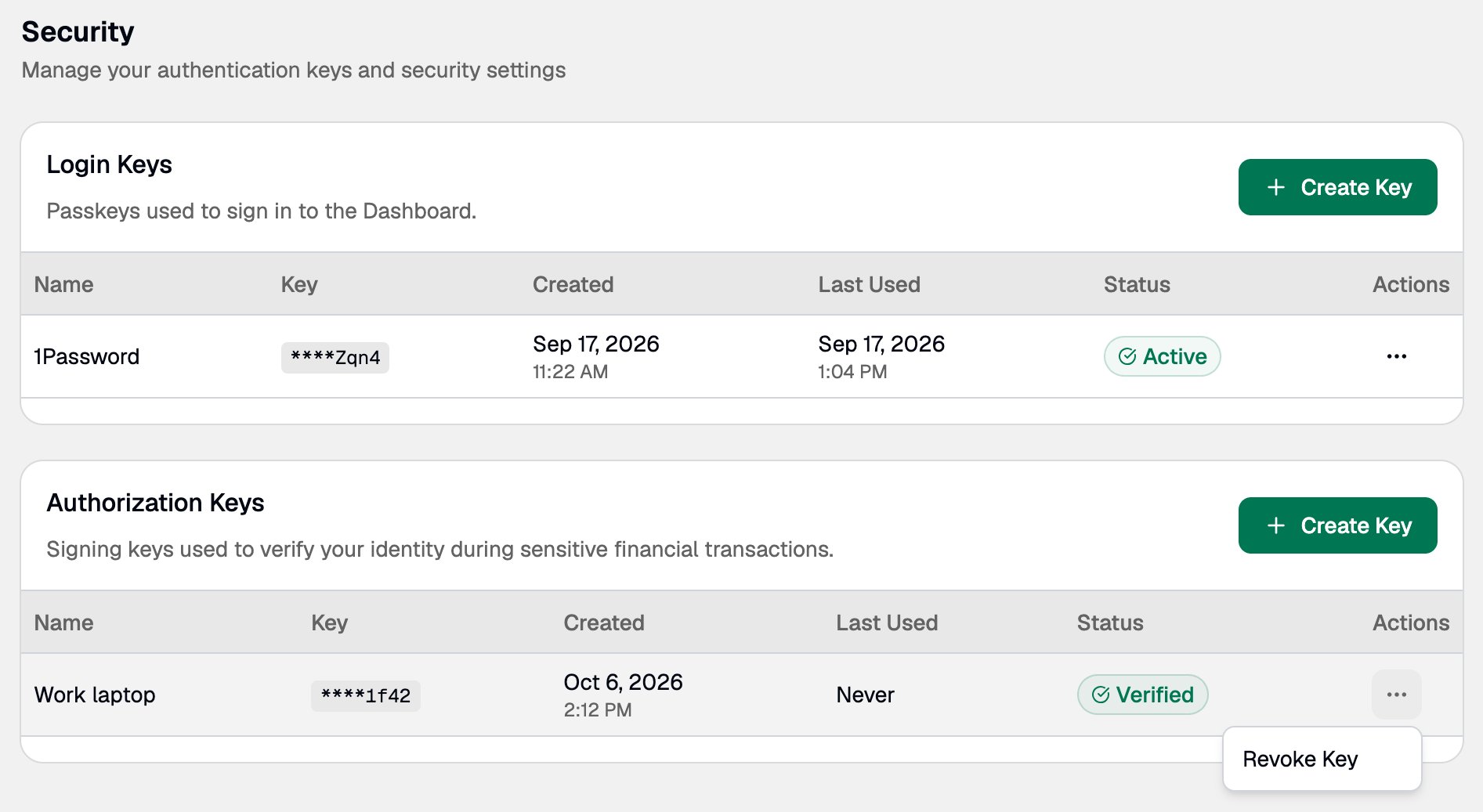
Revoke a key if you no longer use it, have lost it, or think someone else might have access to it.- Go to Settings > Security.
- In Authorization Keys, open the actions menu on the key’s row and select Revoke Key.
- Click Revoke Key again to confirm.
Frequently asked questions
I lost my verification code before sending it to Paxos. What should I do?
I lost my verification code before sending it to Paxos. What should I do?
Revoke the unverified key, create a new one, and send Paxos the new code.
I closed the Paxos window before clicking Continue to Dashboard.
I closed the Paxos window before clicking Continue to Dashboard.
Your key was not added. Click Create Key to start again. If your password manager saved a passkey from the unfinished attempt, you can delete it.
Questions? Contact Support.